
STBemu Black Screen: Fix No Picture and Video With Sound
A STBemu black screen needs a different fix depending on what still works. If you can see the channel guide but selecting a channel produces a black picture, first try two unrelated channels. If only one fails, the stream itself may be unavailable or use a video format your current player cannot decode. If several fail, open Settings → Profiles → [active profile] → Media player settings → Media player and test another player. If the entire app or portal is black and you cannot access the guide, restart the app and investigate the portal or profile instead.
These steps apply to StbEmu Free and Pro on supported Android devices, including Android TV and compatible Fire TV hardware. The exact controls and available players can vary with your app and device. StbEmu is the application; the video streams and channels come from your separately authorized portal provider.
Identify which black screen you have
| What you see | Most useful first check | Likely area to investigate |
|---|---|---|
| Channel list appears, one channel has no picture | Try two unrelated channels | The affected stream or its video format |
| Channel list appears, every channel is black | Switch the profile’s media player | Decoder, device compatibility, or upstream streams |
| STBemu black screen with sound | Compare channels, then test another media player | Video decoding or an unsupported video format |
| Picture is black and there is no sound, but menus still work | Check network and test another channel | Stream delivery, player, or provider |
| App menu and portal do not appear | Restart the app; check the portal and profile | App startup or portal loading, not just video decoding |
| Picture goes black after changing display settings | Restore the last working settings | TV/HDMI resolution or display compatibility |
Do not change the MAC address just because a channel has a black picture. A MAC/authorization problem is more relevant when the portal denies access or fails to load. Our STBemu authentication failed guide covers that separate symptom.
Fix STBemu video black screen after the portal loads
1. Test other channels before changing settings
Open the channel guide and select at least two unrelated channels. If one channel fails but others play normally, the overall portal login is working. Ask the provider whether the affected channel or its source is available, and include the channel name and approximate time. Changing an app setting cannot restore a stream that is unavailable on the provider side.
If every channel fails, note whether you hear audio, see a loading spinner, or get an error. Those observations help distinguish video decoding from a general stream-delivery problem.
2. Change the media player for the active profile
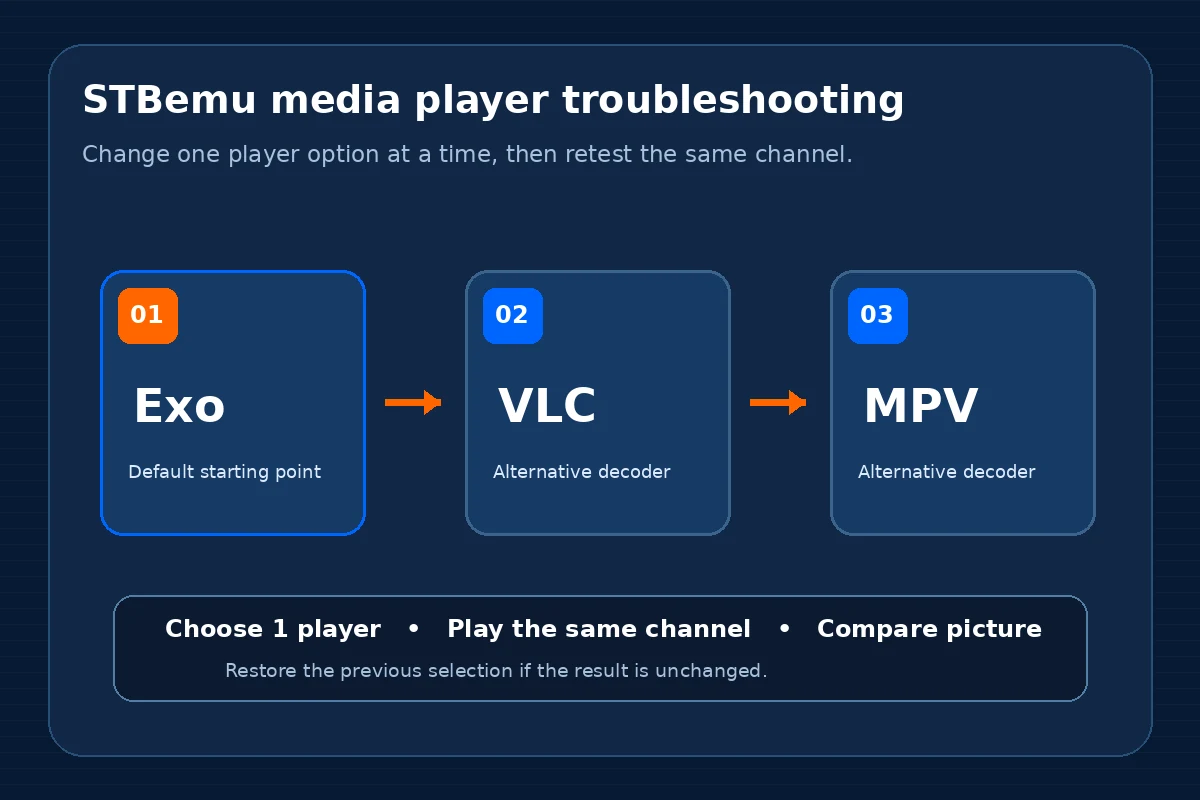
The StbEmu developer documents the player selector under Settings → Profiles → Media player settings → Media player. Open the profile that loads your portal rather than changing a different saved profile. The documented options include Exo (the recommended default), VLC, MPV, Ijk, the Internal player, and an External player option. Availability can vary. See the developer’s profile settings reference.
- Write down your current media player, so you can restore it.
- Open Settings, then Profiles, then select the active profile.
- Go to Media player settings → Media player.
- Choose another available built-in player, such as VLC or MPV, save the profile, and retry the same channel.
- If nothing improves, restore the original player or test one additional option. Change only one setting at a time.
An alternative player may support a video format that the current one cannot render on your device. However, no single player is guaranteed to work with every channel, Android version or set-top box. The Android Internal player depends on codecs supported by the device and operating system; the developer notes that the Internal and Ijk players do not support subtitles. The External player opens streams in another application and is not fully integrated with the emulator.
3. Check the Android device, TV and HDMI output
If the player change does not help, exit StbEmu and open a different video application on the same device. If that application also has a black picture, check the TV’s HDMI input, cable, display resolution and device restart before blaming the IPTV portal. On Android TV boxes connected to an older display, a recently changed output resolution or refresh rate may be incompatible with the screen. Restore a known-working output mode rather than trying arbitrary values.
If other apps show video normally and only StbEmu has the problem, focus on its profile player, the particular stream, and provider compatibility instead.
4. Restart the app and clear cache carefully
Close StbEmu completely and reopen it. If the problem persists, restart the Fire TV or Android device. On devices that provide Android app controls, you can also open the device’s Settings → Apps → StbEmu and select Force stop or Clear cache (the menu wording varies by platform).
Do not select Clear storage/Clear data as an early troubleshooting step. It can remove profiles and configuration details, including the emulated device identity that your provider may have registered. If a reset later becomes necessary, record the active portal URL, emulated MAC and any provider-specific identity settings privately first.
5. Check whether the stream is reaching the device
If the guide loads but video repeatedly fails, test another channel and another legal streaming app over the same connection. Check whether the issue occurs only on Wi-Fi or also on a supported Ethernet connection. A weak or unreliable link can cause playback to stall even when the guide loads normally. If the portal supplies content through network routes or protocols that the connection restricts, ask the provider to check the stream path rather than guessing a new server URL.
The developer’s StbEmu FAQ attributes frequent buffering to unreliable or insufficient network/provider connectivity. Buffering is not identical to a black screen, but a failed stream connection can leave playback without visible video.
STBemu black screen with sound: what it means
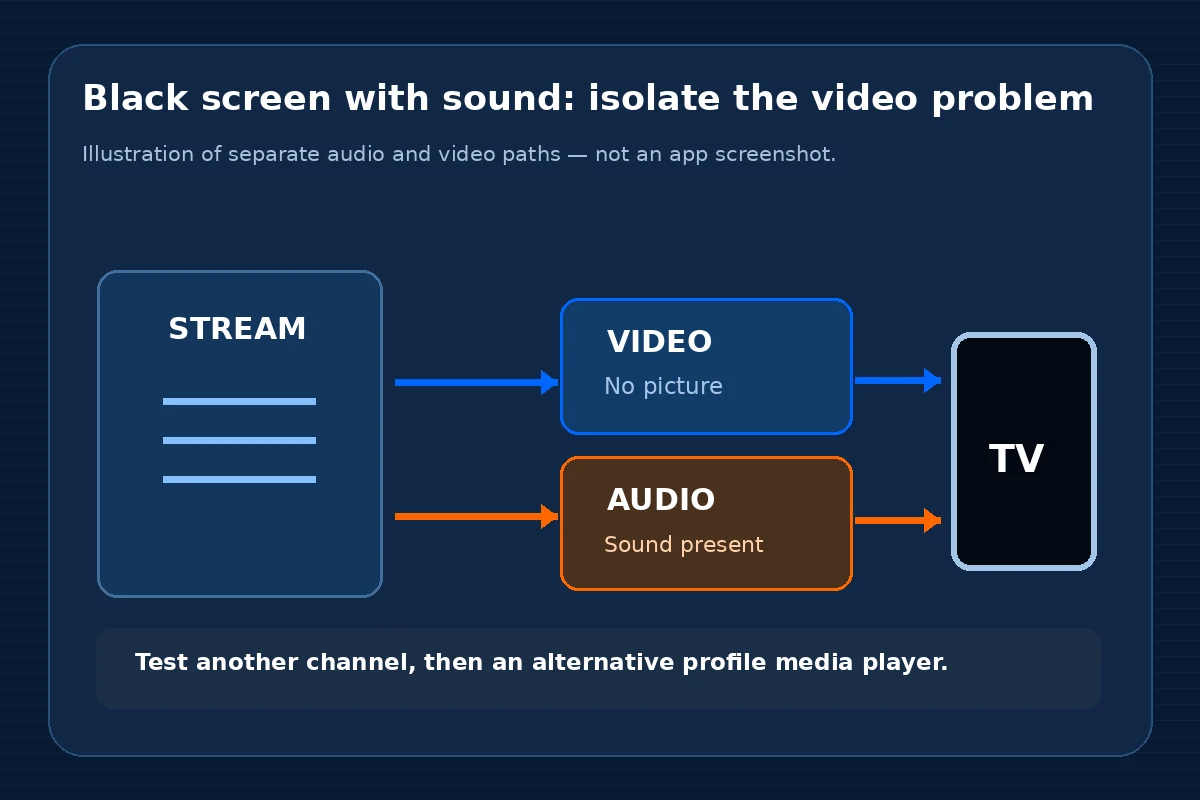
A STBemu black screen with sound is a useful clue: the device is receiving some part of the stream, but its video may not be decoding or rendering. It does not prove that the video codec is the problem; the stream itself might also have an upstream video-track issue.
Start by checking whether audio-only playback happens on one channel or all channels. For a single channel, report it to the provider and test a different media player. For several channels, try an alternative built-in player in the active profile and compare with another video app on the device. If video returns after changing players, keep that working option; if it does not, restore your original selection and ask the provider to confirm the stream’s video format and availability.
If STBemu has no picture and no audio, run the same channel comparison, then investigate connection delivery and provider status. Do not assume this is an audio-volume problem: volume controls cannot repair a missing video track.
When the whole STBemu screen is black
A completely blank app or portal is different from a black video frame after choosing a channel. First restart StbEmu and the device. If the app opens but stops while loading the portal, verify the active profile and exact portal URL, then follow our STBemu portal not loading troubleshooting guide. The official StbEmu profile documentation shows where the portal URL and active profile are configured.
When the portal loads but displays an explicit access-denied or authorization message, check the provider-registered MAC and subscription status instead. The MAC address registration guide explains which emulated address to confirm with your provider.
What to tell your IPTV provider if video stays black
A useful report includes the channel name, time and date, device model, StbEmu version, selected media player, whether sound is present, and whether the same fault occurs on other channels. This gives support enough information to distinguish a single bad feed from a client-side decoder issue. You can describe the issue without posting credentials or your full MAC address publicly.
Do not keep reinstalling the app or changing identifiers while waiting for the provider to check the stream. Those actions can introduce a separate authorization problem without repairing playback.
Frequently asked questions
Why is STBemu showing a black screen but the TV guide works?
The guide and the video stream are separate parts of the experience. A working guide suggests the portal interface loaded, but a channel can still be unavailable or incompatible with the selected video player. Test another channel first, then another documented media player.
Does STBemu Pro fix the black screen problem?
Not automatically. The StbEmu developer says the main difference between Free and Pro is advertisements. Paying for Pro does not repair an unavailable provider stream or make unsupported video formats work on every device.
Which STBemu media player is best for a black screen?
The developer recommends Exo as the default for most devices. If it produces a black picture, try one other available player such as VLC or MPV, and keep whichever works with your authorized stream. There is no universal setting for all hardware and channels.
Should I change my MAC address if STBemu has no picture?
Not if the portal has already authorized your profile and loads its channel list. Changing the MAC could make the provider reject a previously working account. Investigate the video stream and media player first.
Why does STBemu show video on one channel but not another?
Individual channels can come from different streams with different availability and video formats. Record the failing channel and test another player; contact your provider if the failure is limited to that source.
Conclusion
For a STBemu black screen, identify whether the problem affects one channel, every video stream, or the entire portal. When the guide loads, test other channels and then change the active profile’s media player one option at a time. For black screen with sound, video decoding is a reasonable possibility, but the provider’s video track also needs checking if alternate players fail.
If the app itself cannot load its portal, follow the portal loading guide instead. Keep your current profile and registered identity intact until you have evidence that they—not playback—need to change.