
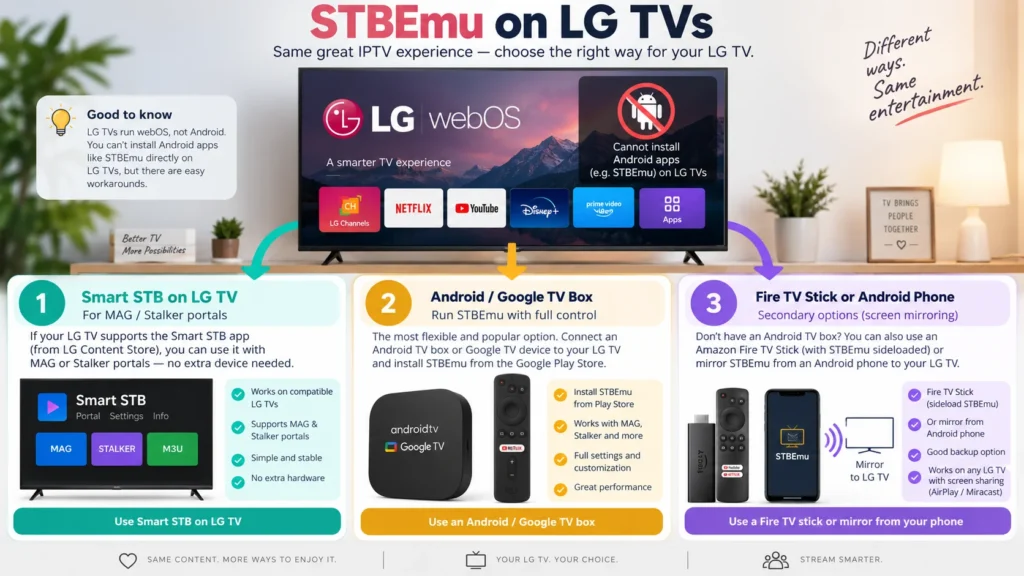
If you want to install STBEmu for LG TV directly on an LG smart television, the key answer is simple: you cannot run the Android version of STBEmu natively on LG webOS. STBEmu is an Android MAG/STB emulator, while LG webOS uses its own app platform and .ipk packages. Your practical choices are a compatible LG app such as Smart STB, an external Android or Fire TV device, or screen mirroring for short-term use.
Once you are done with app setting on your device, you would need an STBemu or any other stalker app, compatible IPTV subscription. STBemu Pro is your one stop shop, offering multiple free trials to see for yourself what works best for you.
Does STBEmu Work on LG Smart TV?
Why STBEmu Cannot Run Directly on LG webOS
LG webOS and Android use different application formats and runtimes. STBEmu is distributed as an Android app. LG webOS applications are built for LG’s platform and packaged as IPK files. Renaming an APK, copying it to a USB drive, or enabling Developer Mode does not convert Android software into a webOS app.
This operating-system difference matters more than the panel type. The supplied research reaches the same core conclusion.
LG’s developer documentation confirms that webOS apps install as .ipk packages. Developer Mode tests webOS apps; it does not add Android compatibility.
Can You Download STBEmu From the LG Content Store?
No official LG webOS build of STBEmu is listed. The current Google Play listing identifies STBEmu as an Android set-top-box emulator and says it must be configured for a provider portal. It also states that the app does not support M3U playlists.
LG filters app availability by model and service country, so check your exact TV through LG’s app-availability tools.
Be cautious with websites advertising an “STBEmu APK for LG TV.” An APK remains an Android package. It does not become compatible with webOS because the download page mentions LG.
Can You Install the STBEmu APK on LG TV Through USB?
Copying an APK to USB does not add Android support. The TV cannot execute that file as a native webOS app.
LG Developer Mode lets developers install and test webOS IPK files from a computer. It is not an Android emulator.
STBEmu Compatibility by LG TV Type
| LG device type | Direct STBEmu support | Practical route |
| LG webOS Smart TV | No | Smart STB or another native player, or external hardware |
| Older LG NetCast TV | No | Supported legacy app or external HDMI device |
| Non-smart LG TV with HDMI | No native apps | Android box, Google TV device, or Fire TV Stick |
| LG monitor/commercial display | Usually no | Check its OS, then use external hardware if needed |
For LG TVs, the full model number is more useful than the screen technology or purchase year.
How to Check Your LG TV Model and webOS Version
Before installing a native IPTV player, record the TV model, software version, and LG Services Country.
Menu paths vary by generation. On many recent LG televisions, you can find model information under Settings > Support > TV Information. Some 2021–2022 models place it under All Settings > General > Devices > TV Management > TV Information. Older webOS versions may use General > About This TV.
You can usually find the software version under Settings > Support > Software Update. If menus differ, use the model label on the rear of the television.
Then check LG’s model-specific app listing. Availability can change by webOS generation and region.
What You Need Before Setting Up STBEmu for LG TV
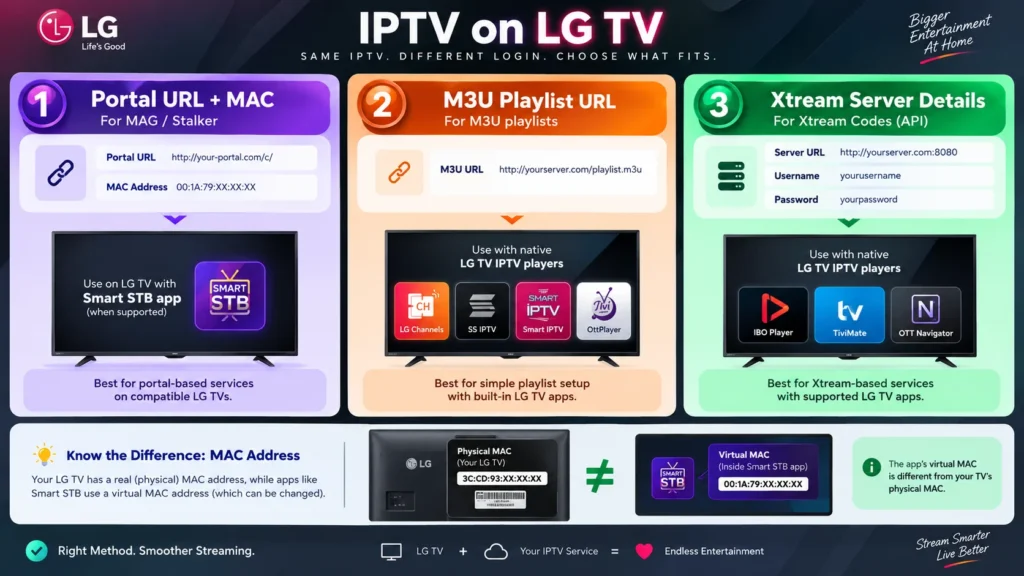
You need an authorized IPTV service plus the correct credentials for the login method it supports. Installing a player does not provide channels.
The three common credential types are:
- MAG/Stalker portal: usually a portal URL plus an emulated MAC address. Some providers also bind a serial number or device ID.
- M3U: a playlist URL or file. It may also use a separate XMLTV EPG URL.
- Xtream-style login: normally a server URL, username, and password.
Do not paste M3U or Xtream credentials into STBEmu’s portal field. STBEmu’s official Google Play description says the app does not support M3U or other playlists.
Physical MAC Address vs Virtual MAC Address
Your LG television has a hardware network MAC. A portal-emulation app can use a different identity.
Smart STB uses a Virtual MAC for portal authentication. Its Software ID identifies the app installation for licensing. If your provider expects the Virtual MAC, sending the LG TV’s network MAC can cause a blocked or unregistered-device error.
Keep those values separate. Register only the identifier your provider requests.
Method 1: Use Smart STB on a Compatible LG TV
Smart STB is a native LG option for many MAG or Stalker portal users, but it is a separate app and portal compatibility varies.
Install and Configure Smart STB
- Open Apps or LG Content Store.
- Search for Smart STB.
- Check that the listing supports your exact television.
- Install and launch the app.
- During Loading Portal, press OK/Center.
- Open System Settings > Device Info.
- Record the Software ID and Virtual MAC.
- Open Portals and enable the portal slot you want to use.
- Enter the provider’s exact portal URL.
- Ask the provider to register the app’s Virtual MAC.
SmartSTB’s guidance allows portal changes from the TV and from its website. It also warns that the app itself does not supply television service, portals, or playlists.
Use the provider’s direct portal URL and preserve its scheme, port, and path exactly.
Smart STB Trial and Licence Options
As checked in September 2026, SmartSTB lists a seven-day Full trial. Its price page lists Smart TV Lite at €6.99 for 12 months. Full Smart TV pricing is €1.99 monthly, €14.99 yearly, €24.99 lifetime, or €49.99 for the unlimited licence. These are app fees, not IPTV subscription charges. The page also states that payments are non-refundable.
Use the trial with your own portal before paying. Test live channels, VOD, remote navigation, and the codecs your service uses.
Method 2: Run STBEmu on an Android or Google TV Device
If you specifically need STBEmu, an external Android-family device is the cleanest solution. Your LG television becomes the screen while the external device runs Android.
Connect the box by HDMI, finish network setup, and install STBEmu from Google Play on a Play-certified device.
Open STBEmu > Settings > Profiles. Enter the exact portal URL and provider-assigned MAC, then select an STB model your provider accepts.
Use the default Exo player first. If a specific stream format fails, another available player can help isolate a decoder problem. Restart the portal after saving changes.
Do not run the same portal account and MAC on two devices at the same time. Some portal systems interpret duplicate identities as cloning and block access.
Method 3: Use STBEmu Through a Fire TV Stick
A Fire TV Stick also connects through HDMI. Fire OS is Android-based, but app availability and navigation differ from standard Android TV.
Check the Amazon Appstore first. If STBEmu is not officially available for your Fire TV model, sideloading carries extra risk. Avoid unknown APK sites, repackaged files, and downloader codes from unverified sources.
A verified developer APK uses the same portal URL, MAC, STB model, and provider registration steps.
A Fire TV remote can also feel less natural inside an interface designed around MAG-style navigation.
Method 4: Mirror STBEmu From an Android Phone
Screen mirroring can work for testing without buying hardware. STBEmu still runs on the phone. The LG TV only displays the mirrored output.
Connect both devices to the same network. Open LG Screen Share, then use Cast, Smart View, Wireless Display, or Screen Mirroring on Android.
This method has clear limits. Protected video may show a black screen while menus remain visible. Notifications can appear on the TV, calls can interrupt playback, and the phone must stay powered. Wi-Fi also handles both the incoming video and the mirrored output.
Use mirroring as a temporary method rather than a permanent STBEmu setup.
Best STBEmu Alternatives for LG TV
Choose the player according to the credentials you already have.
| Your login type | Better LG TV route |
| MAG/Stalker portal + MAC | Smart STB, if supported by the portal and TV |
| M3U/M3U8 playlist | SS IPTV, IBO Player, or another compatible LG playlist player |
| Xtream server + username + password | SmartOne IPTV or another Xtream-compatible LG app |
| Provider requires STBEmu itself | Android/Google TV box or compatible Fire TV device |
| Short test only | Android phone mirroring |
SS IPTV documents an LG version and external playlist support. SmartOne states that its LG app supports webOS and NetCast plus Xtream-style API access and M3U playlists.
CAST4K is a native app for IPTV service Stream4k. It is also for now available on Google Play Store only.
These are examples, so confirm availability on your exact LG model.
Troubleshooting STBEmu and Smart STB on LG TV
Smart STB Does Not Appear
Check the full TV model, LG Services Country, webOS version, and software updates. Restart the TV and search again. If LG’s model-specific store still does not list the app, use another native player or external hardware.
Portal URL Does Not Load
Check the scheme, domain, port, path, and trailing segments. Confirm that the provider registered the correct Virtual MAC. Ask whether the portal supports Smart STB.
If a demo portal loads but your provider portal does not, the problem is more likely related to credentials, binding, redirect handling, or provider compatibility.
STB Blocked or Device Not Registered
Ask the provider to verify the registered MAC. If you moved from STBEmu to Smart STB, the old binding may need to be removed before the new Virtual MAC works.
Avoid changing random MAC addresses repeatedly. That can create more registration conflicts.
Channel List Loads but Video Is Black
A loaded channel list proves authentication, not playback compatibility.
Test several channels and one VOD item. If only one stream fails, the source may be down. If an entire group fails, codec or playback compatibility may be the cause. On external Android hardware, try Exo first and another player only as a test.
Buffering and Unstable Playback
Test Ethernet where practical. Otherwise, use strong 5 GHz Wi-Fi at short range. Stop large downloads and compare another legal streaming service on the same device.
A high speed-test result does not rule out packet loss, Wi-Fi interference, server congestion, or poor routing. A VPN may improve a bad route in some cases, but it can also reduce speed. Test the local network and provider performance first.
Security, Privacy and Legal Considerations
Install STBEmu from Google Play and webOS apps from the LG Content Store where possible. Unknown APK files can be outdated or modified.
Treat portal URLs, usernames, passwords, MAC addresses, Software IDs, and device IDs as credentials. Do not post them in screenshots or public support threads.
Prefer HTTPS when your provider supports it. Do not change an http:// portal to https:// without confirmation because some legacy systems only accept the configured scheme.
STBEmu and Smart STB are players or emulators. They do not make an unauthorized IPTV service lawful. Use services authorized to distribute the content they provide.
Frequently Asked Questions About STBEmu for LG TV
Can LG webOS run Android applications?
No. LG webOS runs applications built for webOS, not Android APK files.
Can I convert an APK file into an LG IPK file?
Not by renaming or repackaging it. The application would need to be developed for webOS.
Can I install STBEmu on an LG TV using USB?
No. A USB drive does not make an Android APK executable on webOS.
Is Smart STB the same as STBEmu?
No. Smart STB is a separate portal-emulation application with its own licensing and compatibility rules.
Does STBEmu support M3U playlists or Xtream Codes?
STBEmu’s official listing says it does not support M3U or other playlists. Use a compatible LG player for M3U or Xtream-style credentials.
Is the Virtual MAC the same as the LG TV MAC address?
No. The Smart STB Virtual MAC identifies the emulated device to the portal. The LG TV MAC belongs to the physical network interface.
Do STBEmu or Smart STB include channels?
No. You need a separate authorized IPTV service and the credentials it provides.
Can one MAC address be used on two devices?
Do not assume it can. Many providers bind one device identity to one active session. Ask the provider before moving or reusing a MAC.
What is the best way to use STBEmu on an LG TV?
If STBEmu itself is required, use an Android or Google TV device through HDMI. For a compatible MAG/Stalker portal, Smart STB can keep everything on the LG TV. For M3U or Xtream credentials, use a native LG player built for that login method.
Conclusion
STBEmu cannot run natively on an LG webOS television because Android APK files and LG webOS applications use different platforms. USB installation and LG Developer Mode do not remove that boundary.
Choose the setup from your credentials. Use Smart STB for a compatible MAG/Stalker portal, an LG playlist player for M3U or Xtream access, and external Android hardware when STBEmu itself is mandatory. Screen mirroring is useful for a quick test, but it is a weaker long-term setup.