
STBemu authentication failed usually means the Stalker/Ministra portal has rejected, or cannot validate, the device identity associated with your current profile. First compare the MAC address shown in StbEmu with the address registered by your IPTV provider. Then confirm that the subscription is active, the correct portal profile is selected, and the full portal URL is unchanged. If those details match, the app developer recommends testing with network cache disabled when authentication errors recur.
These checks apply to StbEmu Free and Pro on supported Android devices, including Android TV boxes and compatible Fire TV devices. The player is separate from the IPTV subscription. Your provider, not the app, controls whether a profile is authorized to use its portal.
What does “STBemu authentication failed” mean?
A Stalker portal authentication error occurs when the app cannot complete the portal’s identity check. It is different from a video buffering problem: the portal must recognize the profile before it can provide the services that account is entitled to access.
The exact message differs by portal. You may see authorization failed, access denied, STB blocked or an error after the first portal screen appears. These messages do not all prove the same cause. A blocked account can require provider action, while a wrong URL can prevent you from reaching the intended portal at all.
| What you see | First thing to check | Who can resolve it? |
|---|---|---|
| Authentication or authorization failed after the portal responds | Registered MAC and current profile | You can compare settings; the provider confirms registration |
| STB blocked or access denied | Account status, device approval or a provider restriction | Usually the provider |
| The portal worked before a reinstall or profile reset | Whether the app’s emulated MAC or Device ID changed | You and the provider |
| Loading screen never completes | Full portal URL and network reachability | Start with your device; then contact the provider |
| Portal loads but a channel stays black | Playback or stream availability, not initial authorization | Device/player settings or provider support |
For a portal that never opens, start with our separate STBemu portal not loading troubleshooting guide. This article focuses on a portal that reports an authorization or account-access problem.
Fix STBemu authentication failed in the right order
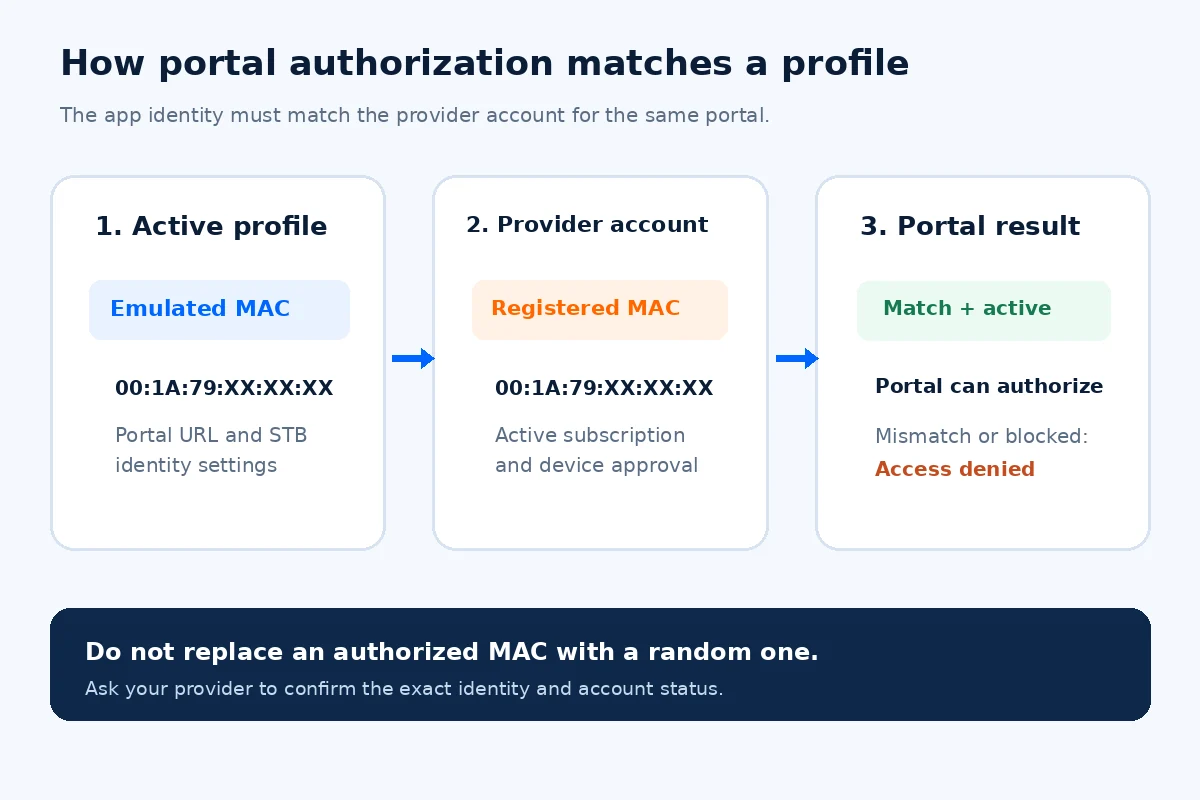
1. Check the MAC address used by the active profile
StbEmu uses an emulated MAC address, which isn’t necessarily the same as your Firestick’s or Android device’s Wi-Fi MAC address. According to the StbEmu developer’s profile documentation, the emulated address is available under Settings → Profiles → the active profile → STB configuration → MAC address.
- Open StbEmu and display its menu. Depending on your device, you may double-tap the screen or use a remote or mouse to bring up the menu.
- Select Settings → Profiles.
- Open the profile used for the affected subscription.
- Go to STB configuration → MAC address and note the entire value.
- Compare every character with the MAC address registered for that account by your provider.
StbEmu’s documentation says most portals expect a MAC starting with 00:1A:79. That prefix alone does not authorize access. The entire address must match the value approved by the provider. Don’t copy a MAC from a tutorial or use another customer’s address.
If your app displays 00:1A:79:00:00:00, the developer explains that Android restrictions can prevent a usable address from being generated on some Wi-Fi-only devices. The address may need a properly configured unique suffix, followed by registration with your provider. Do not change an already activated identity merely to make it look different.
For a fuller explanation, see how to find and register your STBemu MAC address.
2. Ask your provider to confirm activation and account status
A correctly typed MAC can still receive an authorization error when the account isn’t active or the portal has not linked that MAC to the subscription. Ask the provider to verify that:
- The subscription or trial remains active.
- The MAC displayed in this profile is the one registered for this portal.
- The account is approved for the device or STB model in use.
- The account has not been suspended, blocked or restricted to a different device or connection.
If the provider limits simultaneous connections, close the service on other devices before retrying. Restrictions vary by subscription, so do not assume that all Stalker portals enforce a single connection.
Registration happens on the provider’s system. Reinstalling StbEmu cannot activate an expired or unregistered account.
3. Verify the portal URL and selected profile
In the same profile, open Portal settings → Portal URL. Check the precise address supplied by your provider, including the http:// or https:// prefix, hostname, port and path. The official StbEmu profile reference requires a URL scheme.
Do not guess a /c/ or /stalker_portal/c/ ending. Different services use different paths, and the provider-issued address is the reference to follow. Also make sure you have not selected a different saved profile that uses another portal or MAC.
If you recently changed your portal URL, ask the provider whether the original MAC registration applies to the new portal. A MAC registered on one service is not automatically active on another.
4. Check device identity settings only when your provider requires them
Some portals verify more than a MAC address. The official StbEmu settings include an STB Model, Serial number, Device ID, Device ID 2 and related identity options under STB configuration.
Keep the current values unless your provider specifically requires a different supported STB model or identity configuration. Randomly changing the serial number, firmware emulation, Device ID or signature can make a previously valid profile fail authorization.
If your provider asks for Device ID details, use the app’s displayed values for your authorized profile. The developer documents how the Use MAC-based device ID, Send Device ID and Reset device ID settings work; reset only when you have a reason to and understand that the resulting identity may need to be registered again.
5. Temporarily disable network cache for repeat errors
This is an app-level troubleshooting step directly supported by the developer. The official common settings documentation states that network caching normally speeds portal loading, but recommends disabling it if authentication errors or network issues occur frequently.
- Open Settings → Common settings → Network settings.
- Find Enable network cache and turn it off.
- Close StbEmu fully and reopen the affected profile.
- Test authorization again.
If disabling cache does not change the error, restore the setting if you prefer its normal loading performance. Network cache cannot correct a subscription that the provider has blocked.
6. Restart the app without wiping the profile
After confirming the authorized MAC and portal URL, close StbEmu completely and reopen it. Restarting the Android device can also clear a stalled application session.
Avoid Clear data or uninstalling the app as your first fix. These actions can remove saved profiles and settings. If your emulator identity changes after a reset or reinstall, your provider may need to register the newly displayed MAC or other required identifiers.
If you are using a TV box or Firestick with an intermittent connection, verify that other apps can reach the internet. A network problem can interrupt the portal request, even when the account itself is authorized.
STBemu authorization failed vs. portal not loading
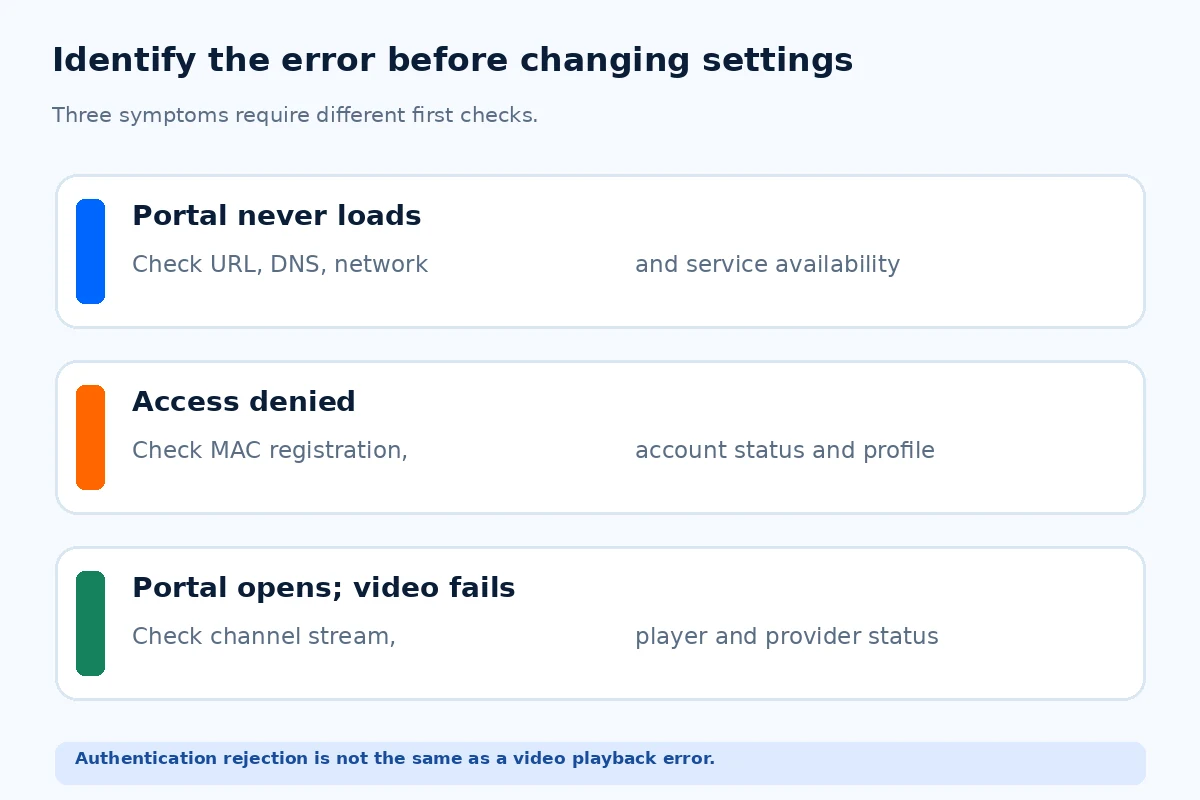
The distinction saves time because the fixes are different.
- Portal not loading: The app never completes the connection or first page. Check URL syntax, DNS, connectivity, portal availability and relevant network settings first.
- Authorization failed / access denied: The portal responds but rejects the profile or account. Check registered MAC, current profile, subscription status and any provider-required identity settings first.
- Portal opens but TV channels do not play: The login may already have succeeded. Investigate individual streams, codecs, player configuration and provider availability rather than changing the registered MAC immediately.
If you need the full beginning-to-end configuration process, follow the Stalker portal setup guide for STBemu. It explains where the portal URL and emulated identity are configured.
What to send your IPTV provider when access is denied
A useful support request contains the exact error message, the device model and Android or Fire TV software version, the app name (Free or Pro), the portal hostname or account reference, and the MAC displayed in the active profile. Send full portal details and identifiers only through your provider’s private support channel. Do not publish a working portal URL, full MAC or account information in a public forum.
Tell the provider when the error started, whether the profile ever worked, and whether you recently reinstalled the app, changed devices or edited the STB configuration. Those details help distinguish a registration problem from an expired account or a profile change.
Frequently asked questions
Why does StbEmu say authorization failed when my internet works?
Working internet access only proves that the device can reach the network. The portal can still reject an unregistered MAC, an inactive account or a profile that does not match its authorization requirements. Confirm the MAC and account status with the provider.
Will buying StbEmu Pro fix authentication failed?
Not by itself. StbEmu Pro removes ads from the application, but purchasing the player does not register a MAC address or include an IPTV subscription. The portal operator still controls account access.
Can I fix STBemu access denied by changing the MAC?
Only change the MAC when you are correcting your own configuration and your provider approves or registers the replacement address. Using someone else’s identity or repeatedly guessing MAC values is not an appropriate troubleshooting method.
Does STBemu use an Xtream Codes username and password?
StbEmu is primarily a Stalker/Ministra portal emulator with profile settings such as portal URL and emulated STB identity. A service supplying only Xtream Codes credentials generally needs an appropriate Xtream-compatible player; do not enter them into unrelated Stalker profile fields.
Why did authentication fail after I reset the application?
Clearing app data or reinstalling can remove your saved configuration. Recheck the current profile, portal address and emulated MAC. If any registered identifier changed, ask the provider to update the authorized account information.
Conclusion
For STBemu authentication failed, check the registered MAC in the active profile first, then verify the subscription and portal URL with your provider. Only after those agree should you test network cache or provider-required Device ID settings. When the provider confirms that the account is blocked or expired, the fix is an account change on their side—not another app reinstall.
If your portal is reachable but you still receive an access-denied message, use the MAC address registration guide to collect the correct profile details before contacting support.