
STBEmu can turn an Android TV or Google TV device into a software-based MAG set-top box. Installing the app takes only a few minutes, but installation alone won’t load a TV service. You must also enter a compatible portal URL, configure the emulated MAC address registered by your provider, activate the correct profile, and reload the portal.
This guide explains how to install and configure STBEmu on Android TV, use it with a TV remote, and fix common portal, authorization, playback, sound, and buffering problems. STBEmu does not include channels, subscriptions, portal access, or shared MAC addresses. Use it only with a compatible portal and content you are authorized to access.
Quick Answer: How to Set Up STBEmu on Android TV
- Install STBEmu Free or STBEmu Pro from Google Play.
- Open the app menu and go to Settings > Profiles.
- Edit the default profile or create a new one.
- Open Portal settings and enter the full portal URL from your provider.
- Open STB configuration > MAC address.
- Enter the emulated MAC registered with the same provider.
- Keep the default model, firmware, Device ID, and player settings unless your provider specifies different values.
- Save the profile, select it as the active profile, and reload the portal.
- If authorization fails, check the portal address, registered MAC, subscription status, and provider server before changing advanced settings.
The portal address and MAC must match the provider’s records. A correct URL paired with the wrong MAC will not authenticate. A valid MAC paired with the wrong portal will connect to the wrong server or fail before authentication.
What Is STBEmu?
STBEmu is an Android application that emulates selected Infomir MAG set-top boxes, including models such as the MAG 250, MAG 270, and MAG 322. It creates a MAG-style software environment on an Android phone, tablet, TV box, Android TV, or Google TV device. The official STBEmu documentation describes both the free and Pro editions.
STBEmu as a MAG set-top box emulator
A physical MAG box sends device information to a compatible middleware portal. STBEmu reproduces that behavior in software. Depending on the portal, authentication may use the MAC address, model, firmware, serial number, Device ID, Device ID 2, signature, or user agent.
STBEmu isn’t a conventional playlist player. You don’t normally paste an M3U link or Xtream Codes username and password into it. It expects a MAG-compatible portal that can identify and authorize the emulated device.
What STBEmu provides
STBEmu provides the client software, profile settings, device emulation, remote-control functions, and media-player options. The portal provider controls the account, menus, categories, electronic programme guide, channel list, and available streams. This is why two users can install the same STBEmu version yet see different interfaces.
The app does not provide:
- Live channels or video-on-demand content
- A portal URL
- An IPTV subscription
- Public or shared MAC credentials
- Control over the portal’s branding, icons, or channel organization
The developer’s profile guide states that the app is intended for legally acquired content.
Supported televisions and streaming devices
STBEmu can run on compatible Android TV and Google TV hardware, including televisions, certified streaming boxes, and streaming sticks. Current Google Play release information increased the minimum supported system to Android 8. Check the live Play Store listing on the target device because model certification, Android version, account region, and app compatibility can affect availability.
Samsung televisions running Tizen, LG televisions running webOS, Roku devices, and Apple TV do not run Android TV applications directly. Installing STBEmu on a separate compatible Android TV box connected by HDMI is a practical option for those screens.
How Does STBEmu Work?
STBEmu connects to middleware designed for MAG devices. The basic session follows this sequence:
- STBEmu loads the active profile.
- The profile sends the portal address and emulated device identity.
- The portal checks whether that identity is authorized.
- An accepted portal returns its interface and account content.
- STBEmu passes a selected stream to the configured media player.
The app installation and service authorization remain separate. Google Play can install STBEmu, but it cannot activate a third-party portal account. Your portal administrator must register the same emulated MAC stored in the profile. Some portals also bind the account to a serial number or Device ID.
Avoid changing every identity field at the start. A profile with several random values becomes harder to diagnose. Test the registered MAC, exact portal URL, Generic firmware, and default device identity first. Add provider-specific values only when the administrator confirms they are required.
STBEmu Free vs STBEmu Pro
The main documented difference is advertising. STBEmu Free includes ads, while STBEmu Pro removes them. Both editions provide the core MAG-emulation function, according to theofficial STBEmu overview.
| Version | Cost model | Advertising | Core MAG emulation |
| STBEmu Free | Free download | Yes | Included |
| STBEmu Pro | Paid download | No | Included |
Choose Free when you want to test device and portal compatibility. Choose Pro when the portal works and you want an ad-free interface. Pro does not document faster streams, more channels, higher picture quality, or wider portal compatibility. Those results depend on the portal, network, stream, device hardware, and decoder.
Google Play pricing varies by country, tax, and account region. The Pro documentation also warns that a purchase can occasionally take up to 24 hours to become available on another device using the same Google account.
What You Need Before Installation
Collect the following information before opening the profile editor:
- An Android TV or Google TV device running a supported version
- The official STBEmu Free or Pro app
- The exact portal URL supplied by an authorized provider
- An emulated MAC address activated on that portal
- Any provider-required serial number, Device ID, model, firmware, or signature
- A stable internet connection
- A TV remote, with an optional Bluetooth keyboard or air mouse
Ask your provider whether the portal expects /c, a port number such as :8080, or another path. Do not add, remove, or change part of the supplied address based on a generic example.
Portal URL vs Emulated MAC Address
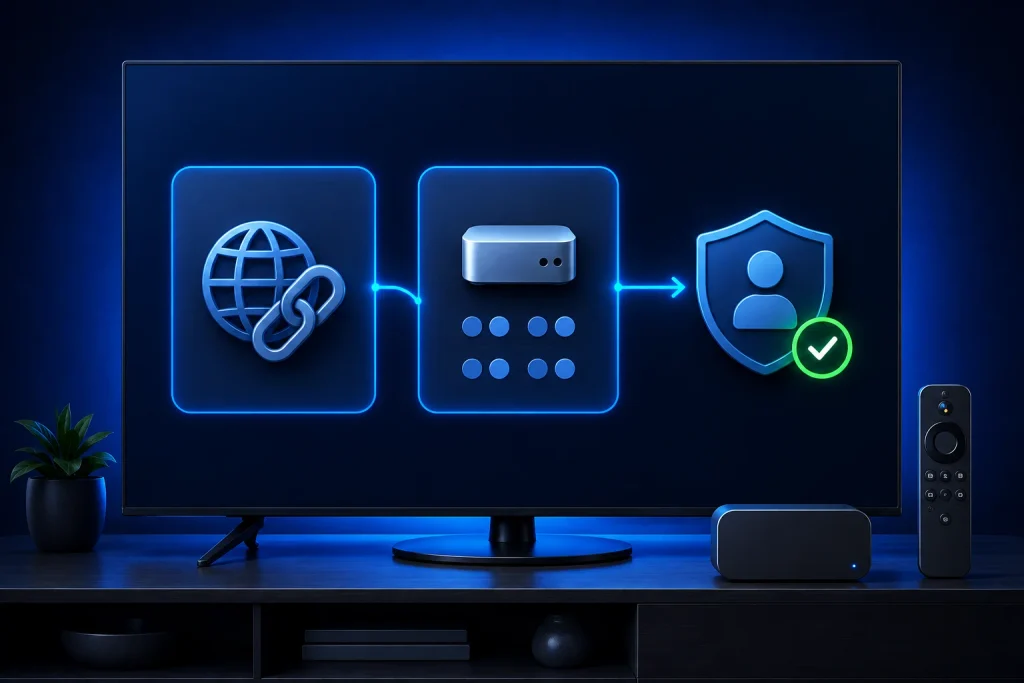
The portal URL and emulated MAC do different jobs:
| Detail | Purpose | Example |
| Portal URL | Locates the middleware server | http://portal.example.com/c |
| Emulated MAC | Identifies the virtual MAG device | 00:1A:79:12:34:56 |
| Hardware MAC | Identifies the TV’s Wi-Fi or Ethernet adapter | Manufacturer-assigned value |
The portal URL must include a scheme such as http:// or https://. The rest of its structure comes from the provider. Many portals expect an emulated MAC beginning with 00:1A:79, but the provider’s system decides what it accepts.
An M3U URL can contain a playlist path and account parameters. Xtream Codes normally uses a server address, username, and password. A MAG portal often authenticates the emulated device through its MAC and related identity fields. These formats are not interchangeable.
How to Install STBEmu on Android TV
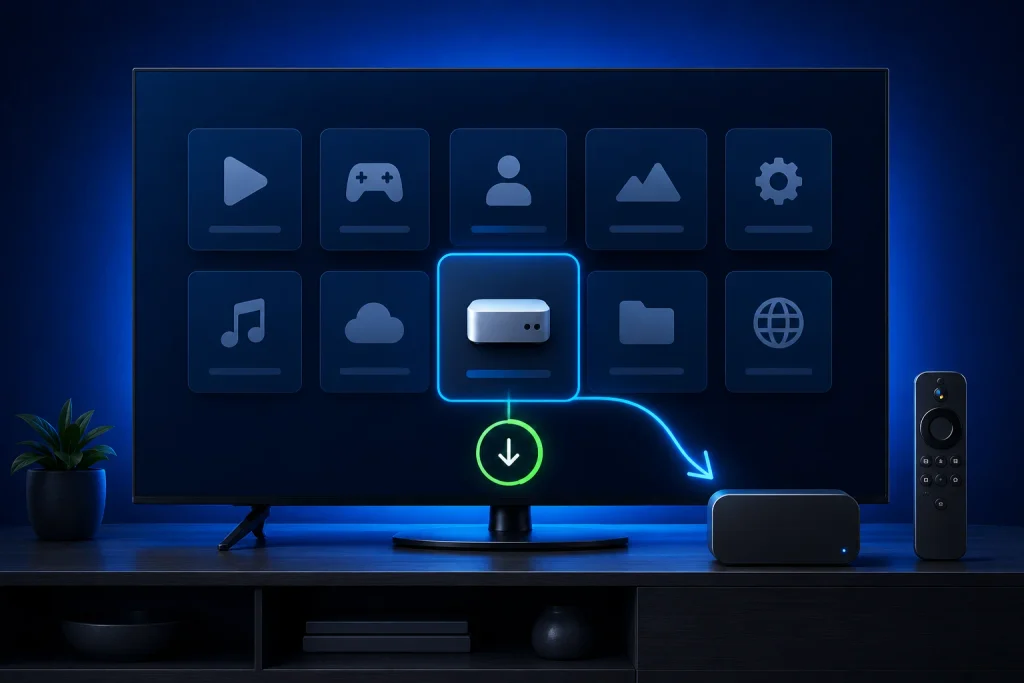
Install STBEmu from Google Play
- Open Google Play Store from the Android TV home screen.
- Select Search and type STBEmu.
- Open the correct app listing and verify the developer shown by Google Play.
- Select the Free or Pro edition.
- Choose Install.
- Select Open after installation finishes.
Google explains direct TV installation in its Android TV app guide. Google TV users can also search from the Apps section or use voice search, as described in the Google TV installation guide.
Install it remotely from a phone or computer
You can send a compatible app to the TV from another device:
- Sign in to Google Play with the same Google account used on the TV.
- Open the official STBEmu listing.
- Select Install on more devices or the device-selection control.
- Choose the Android TV or Google TV device.
- Keep the television connected to the internet while it downloads the app.
Google documents this option in its remote app installation instructions. If the destination TV appears as incompatible, verify its Android version and certification before considering another installation method.
What to Do If STBEmu Is Not in the Play Store
The app may be missing because:
- The TV uses an unsupported Android version.
- The device lacks Play Protect certification.
- The app isn’t available for the account region.
- The account uses a child or restricted profile.
- Google Play hasn’t approved the app for that device model.
- The television runs Tizen, webOS, Roku OS, or tvOS rather than Android TV.
Try remote installation first. Google’s device picker can show whether STBEmu supports another television or box attached to the account.
Can you sideload STBEmu?
Android TV can install an APK outside Google Play, but sideloading doesn’t guarantee remote compatibility, stable playback, or safe software. The official STBEmu download page directs users to Google Play instead of publishing a general direct APK. That makes third-party copies harder to verify.
If no official Play Store route works:
- Use a file obtained from the developer or another verifiable source.
- Check the package name and signer rather than trusting the filename.
- Reject modified, unlocked, or unofficial “premium” builds.
- Keep Google Play Protect enabled.
- Grant Install unknown apps access only to the file manager used.
- Revoke that permission after installation.
Google’s Play Protect guidance for Android TV warns that unknown-source apps can expose personal information, damage a device, or cause data loss.
How to Create an STBEmu Profile
STBEmu normally creates a default profile during its first launch. You can edit that profile or create a separate one.
- Open the STBEmu menu.
- Select Settings.
- Select Profiles.
- Choose the default profile or add a profile.
- Enter a clear profile name, such as “Living Room.”
- Configure Portal settings and STB configuration.
Separate profiles help when you have authorized access to more than one portal. A profile name exists only inside the app and doesn’t affect provider authentication.
The menu-opening action varies by device. A TV remote may have a Menu key. Some versions respond to a long press or a mapped button. On a touchscreen, the developer describes a double tap. An air mouse can expose the menu when a standard directional remote cannot reach it.
How to Add the Portal URL
Inside the selected profile:
- Open Portal settings.
- Select Portal URL.
- Delete the included demo address.
- Enter the complete address supplied by your provider.
- Confirm the value and return to the profile screen.
Use the scheme, host, port, and path exactly as supplied. These fictional examples illustrate different structures:
http://portal.example.com/c
http://portal.example.com:8080/c
https://portal.example.com/mag
Do not assume every address needs /c or port 8080. Do not convert HTTP to HTTPS unless the server supports it. An HTTPS request sent to an HTTP-only endpoint can fail before authentication.
Common STBEmu Portal URL Mistakes
Check for these errors before editing advanced settings:
- Missing http:// or https://
- Wrong domain, port, or path
- Added /c when the provider did not supply it
- Removed /c from an address that requires it
- A trailing space or line break after pasting
- An M3U or Xtream Codes address entered as a MAG portal
- The provider’s public website entered instead of its middleware portal
- The app’s demo portal left active
- An expired or replaced portal domain
- Confusion between uppercase I, lowercase l, and the number 1
A browser test isn’t conclusive. A MAG portal may reject a normal browser while accepting requests from an authorized emulated device.
How to Find and Set the STBEmu MAC Address
Open:
Settings > Profiles > selected profile > STB configuration > MAC address
A MAC-style value contains six pairs of hexadecimal characters:
00:1A:79:12:34:56
Only digits 0–9 and letters A–F are valid. Many MAG portals use the 00:1A:79 prefix. The last six characters identify the individual emulated device and must match the value registered by your provider.
Some Wi-Fi-only devices can produce an address ending in 00:00:00 because Android restricts access to hardware identifiers. The STBEmu profile documentation says users can replace the last three pairs with valid hexadecimal values. Send the final address to the provider for activation before testing.
Treat the emulated MAC as private account information. Blur it in screenshots and avoid posting it in public forums.
Emulated MAC Address vs Android TV Hardware MAC
Use the MAC shown inside the active STBEmu profile unless your portal administrator gives a specific alternative.
The address shown under the television’s Network & Internet settings belongs to the Wi-Fi or Ethernet adapter. It does not automatically identify the virtual MAG device. Android can also randomize Wi-Fi MAC addresses, which makes the network address a poor substitute for the profile value.
Do not copy a physical MAG box’s MAC into STBEmu unless you own that box, your provider permits the transfer, and the address is no longer active on another device. Duplicate use can trigger session conflicts or account restrictions.
How to Save the Profile and Load the Portal
- Return through the profile menus so the app retains your entries.
- Open the main STBEmu menu.
- Select the newly configured profile if another profile is active.
- Choose Reload portal, or close and reopen the app.
- Wait while the portal authenticates the device and loads its interface.
If the demo portal returns, check that you edited and activated the same profile. If the correct portal appears but rejects the device, confirm the registered MAC and account status with the provider.
A successful connection should load the provider’s portal interface. It does not guarantee every stream will play. Test several live channels and on-demand items to separate portal authentication from stream or decoder problems.
How to Use STBEmu With an Android TV Remote
Typical controls include:
- Directional pad for moving through menus
- Center or OK button for selection
- Back button for closing a menu or returning to the previous page
- Menu or a mapped button for opening STBEmu controls
- Number buttons, where supported, for direct channel entry
Remote layouts and portal pages differ, so one key map won’t fit every device. STBEmu provides Settings > Configure key maps for assigning physical buttons to app actions. The official settings guide explains the available controls.
Configure key mappings after the portal and playback work. A Bluetooth keyboard makes long URLs easier to enter. An air mouse can help with pointer-based menus that don’t respond properly to the directional pad.
Recommended STBEmu Settings for Android TV
Use these settings as a controlled starting point:
| Setting | Baseline choice | Reason |
| Firmware | Generic | Works for many portals without extra identity changes |
| Emulated resolution | 1280 × 720 | Common portal interface resolution |
| Media player | Exo | Developer’s preferred starting player for most devices |
| Network cache | Enabled | Speeds repeated portal requests in normal use |
| Cache size | Default 20 MB | Avoids changing a working baseline |
| HTTP proxy | Disabled | Enable only when the provider requires it |
| Portal is internal | Disabled | Normal choice for a remote provider portal |
| Device IDs and serial | Default | Change only for a documented portal requirement |
| Overlay buttons | Disabled on TV | Prevents touch controls obstructing the picture |
| Auto-start | Optional | Useful only when STBEmu should open at boot |
These aren’t universal best settings. A portal may require a particular MAG model, firmware identity, resolution, or Device ID. Follow provider instructions when they differ.
STBEmu Media Player and Decoder Settings
Start with ExoPlayer. Change the player only after identifying a repeatable symptom.
- For black video or green artifacts, test VLC or MPV.
- For unsupported audio, test another player and stereo output.
- For subtitle use, avoid Ijk and the internal player because the developer documents subtitle limits for them.
- Use an external player mainly as a diagnostic option because it lacks full emulator integration.
Test one change at a time against the same channel. Changing the player, decoder, resolution, firmware, and network settings together hides the cause and can introduce new faults.
How to Fix STBEmu Setup and Connection Errors
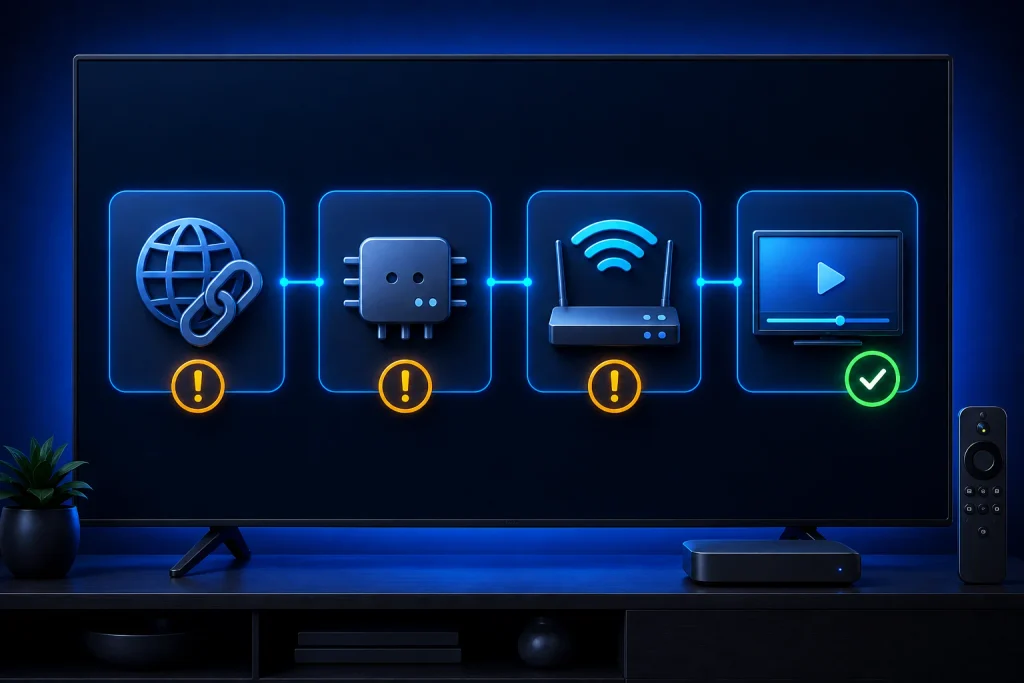
Work from the simplest checks toward provider-specific identity settings:
- Confirm that another app can access the internet.
- Compare the portal URL character for character.
- Check the emulated MAC in the active profile.
- Confirm that the provider registered that exact address.
- Reload the portal.
- Restart STBEmu and the television.
- Test another network.
- Ask the provider to confirm account and server status.
- Change advanced identity or player settings only when the symptom points to them.
STBEmu portal not loading
A malformed URL, expired domain, server outage, DNS failure, blocked route, invalid certificate, or inactive portal can stop the first page from loading.
Check the scheme, hostname, port, and path. Set the TV’s date and time to automatic because an incorrect clock can break HTTPS certificate checks. Temporarily disable a VPN, proxy, custom DNS service, parental-control filter, or router block. Confirm that Portal is internal is disabled for a normal remote portal.
STBEmu authorization failed
Authorization failure usually means the app reached the portal but the server rejected or could not validate the profile. Common causes include:
- Incorrect or unregistered MAC
- MAC registered on a different portal
- Expired account
- The same account active on another device
- Missing serial number or Device ID
- Cached authentication data
- A provider-side account fault
The developer recommends disabling network cache when authentication errors recur. Do not regenerate Device IDs at random. A provider may bind an account to those values, so changing them can make the profile look like a new device.
STB blocked error
“STB blocked” normally comes from the portal rather than Android. It can mean the subscription expired, the provider disabled the MAC, another device is using it, a device transfer wasn’t approved, or a portal security rule stopped the session.
Send the provider the emulated MAC, portal address, approximate error time, and a private screenshot. Do not keep generating new MAC addresses. That can create more account records without fixing the original block.
STBEmu connection error
Restart the router and TV, then compare Wi-Fi with Ethernet where possible. Temporarily disable VPN or proxy settings. Return custom DNS to Automatic and test a phone hotspot. If the hotspot works while the home connection fails, investigate the router, DNS, ISP route, or an IP restriction rather than rebuilding the profile.
Google recommends checking the selected Wi-Fi network, restarting the router and Google TV, installing updates, improving signal strength, or using Ethernet for video faults in its Google TV troubleshooting guide.
STBEmu stuck on the loading screen
- Force stop STBEmu.
- Clear the app cache, not its data.
- Restart the television.
- Disable STBEmu network cache temporarily.
- Confirm the active profile and reload the portal.
- Ask whether the portal requires a specific MAG model or firmware.
Clearing cache removes temporary files. Clearing app data removes profiles and stored configuration, so record the portal and identity settings privately before using that later option.
STBEmu black screen
A black screen after the portal loads can come from a dead stream, unsupported codec, hardware-decoder conflict, player fault, resolution transition, or provider outage.
Test several unrelated channels. One failed channel usually points to that stream. Failure across every channel makes the media player, decoder, device codec support, or provider output more likely. Try VLC, MPV, Ijk, or the internal player after testing Exo.
Video playing without sound
Check the television, receiver, and soundbar for mute or incorrect HDMI output. Test another channel. Change surround or passthrough output to stereo, then try another STBEmu player.
Some Sony, Philips, Xiaomi, and other devices can reset volume during channel changes. The STBEmu FAQ recommends enabling Settings > Common settings > Always use system volume level, then reloading the portal.
STBEmu buffering problems
Buffering can begin at the stream server, internet route, router, Wi-Fi connection, device decoder, or display. A high speed-test result doesn’t rule out packet loss, unstable wireless signal, poor routing, or an overloaded server.
Compare Ethernet with Wi-Fi. On Wi-Fi, compare 5 GHz and 2.4 GHz at the actual TV location. Stop other large downloads and streams. Test several channels, video qualities, networks, and times of day. If every service buffers on one connection, inspect the local network. If only one portal or channel buffers, report it to the provider.
Increasing STBEmu’s network cache isn’t a reliable live-stream fix. The documented cache mainly affects portal network requests rather than guaranteeing a larger video buffer.
Portal works on mobile data but not Wi-Fi
This comparison points toward the home network path. Restart the router, return Private DNS to Automatic, disable filters temporarily, test Ethernet, and check the router firewall. Ask the provider whether the home public IP has been blocked. Keep any troubleshooting within local laws and network policies.
STBEmu freezing or closing
Update STBEmu, Android System WebView, and the TV firmware. Force stop the app, clear its cache, restart the television, and check free storage. If the crash begins only when playback starts, test another media player. Crashes in the portal menu point more toward the portal page, WebView component, or profile.
Google’s slow or laggy Google TV guidance recommends app updates, force stopping, restarting, and closing background apps.
Wrong portal or demo portal appearing
STBEmu includes a demo portal for testing. Edit the correct profile, replace the demo URL, activate the edited profile, and reload it. Delete the demo profile only after confirming the new one works.
Channels or favorites disappearing
The provider may store channel organization and favorites on its portal. Confirm that the same profile, portal, MAC, and category are active. If those match, ask the provider whether it reorganized packages, reset favorites, or performed maintenance. The developer’s FAQ says portal-side favorite ordering usually requires provider correction.
STBEmu Network Cache Settings
The default 20 MB network cache can speed portal loading by reusing saved network data. Leave it enabled during a normal first setup. Disable it temporarily when stale authentication responses or repeated network-specific errors are plausible.
Do not confuse Clear cache with Clear data in Android settings. Cache removal preserves the profile in normal circumstances. Clearing data erases the app’s stored profiles and settings.
Remote-Control and Usability Tips
- Name profiles by room or service so you can identify the active one.
- Use a Bluetooth keyboard for long URLs and device identifiers.
- Configure remote mappings only after basic playback succeeds.
- Keep an air mouse available for pointer-dependent menus.
- Disable overlay buttons if they cover the TV interface.
- Record settings privately before clearing app data or reinstalling.
- Hide real portals, MAC addresses, and Device IDs in screenshots.
Backup and restore can be unreliable on Android 11 and later because of storage restrictions on some TV boxes. A private written record of the profile can save time after a reset.
Frequently Asked Questions About STBEmu on Android TV
Is STBEmu available on Android TV?
Yes, subject to the device’s Android version, Google Play certification, account region, and model compatibility. The official Google Play listing identifies the app as available for TV devices.
Is STBEmu free?
The Free edition is ad-supported. The paid Pro edition removes advertising. Both offer the main MAG-emulation function.
Does STBEmu include channels?
No. The app doesn’t provide channels, playlists, subscriptions, or portal access. You need an authorized MAG-compatible portal.
Where can I get a portal URL?
Get it from the administrator of a legitimate compatible service you can access like STBemu Pro. Avoid public portal-and-MAC lists, scraped credentials, and social-media posts offering shared accounts.
Can STBEmu use an M3U playlist?
No. STBEmu supports MAG-compatible portals rather than M3U playlists. Use a player designed for M3U when that is the format supplied by your service.
Where is the MAC address in STBEmu?
Open Settings > Profiles > selected profile > STB configuration > MAC address. Register this emulated address with the portal provider.
Should I use the hardware or emulated MAC?
Use the MAC shown inside the STBEmu profile unless the portal administrator instructs you differently. The television’s Wi-Fi or Ethernet MAC identifies physical network hardware.
Can one MAC address work on two televisions?
You can type the same value into two profiles, but most providers expect one active device per MAC. Duplicate sessions can disconnect, fail authorization, or trigger a block. Use a separate authorized device connection for each television.
Can I install STBEmu on Google TV?
Yes, when Google Play marks the device as compatible. Google TV supports Android-based applications through its Apps section.
Is it safe to sideload an STBEmu APK?
Prefer Google Play. Sideload only when you can verify the file source and signer. Keep Play Protect enabled and avoid modified builds.
Final STBEmu on Android TV Setup Checklist
Before you finish, verify that:
- You installed STBEmu from Google Play or another verifiable developer source.
- The Android TV version meets current support requirements.
- You replaced the demo portal.
- The URL includes the correct scheme, domain, port, and path.
- The edited profile is active.
- The emulated MAC contains valid hexadecimal characters.
- The provider registered that exact MAC.
- Screenshots don’t expose portal or device credentials.
- You tested Generic firmware and default identity settings first.
- You reloaded the portal after every profile change.
- You tested several live channels and on-demand items.
- You checked video, audio, subtitles, and remote navigation.
- You contacted the provider for expired access, blocked accounts, or server-side faults.
Most failed setups trace back to four points: an unofficial or incompatible app build, an incorrectly copied portal URL, a MAC that doesn’t match the provider’s record, or a provider-side account or server problem. Verify those items before changing firmware, Device IDs, decoders, or cache settings.