
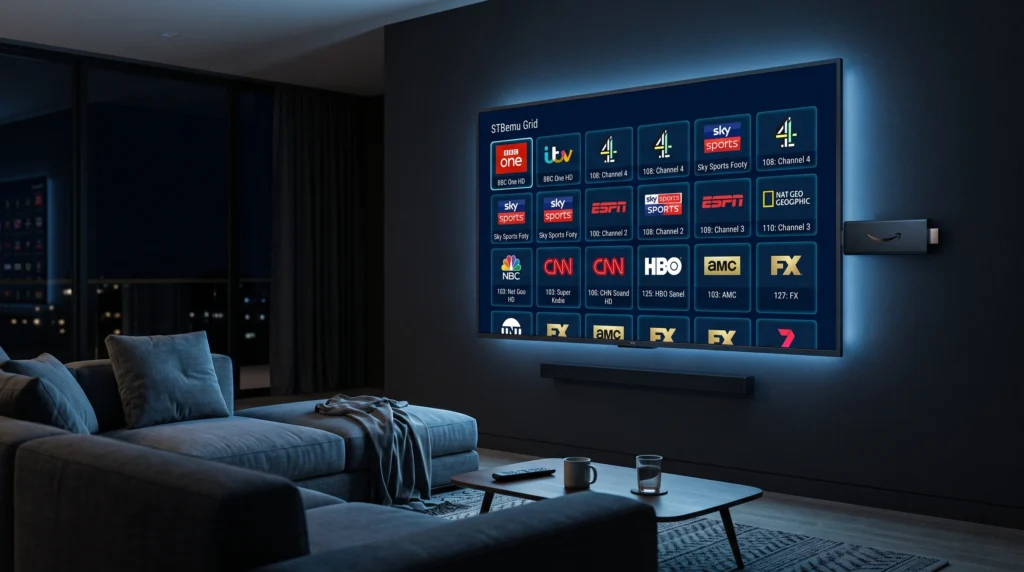
STBemu on Firestick is one of the most popular ways to stream live TV, sports, and on-demand content without paying for expensive cable or satellite packages. The app transforms your Firestick into a fully functional virtual set-top box, connecting directly to your IPTV provider through a Stalker middleware portal. Whether you are setting it up for the first time or switching from another device, this guide covers everything — from downloading the APK and enabling unknown sources to configuring your portal URL and fixing common problems. We have also included a dedicated section for Firestick 4K users and STBemu Pro installation. By the end of this guide, your STBemu will be fully set up and ready to stream.
What Is STBemu and Why Use It on Firestick?
STBemu (Set-Top Box Emulator) is a free Android app that turns your Firestick into a virtual set-top box. Instead of paying for expensive cable packages, you connect to an IPTV subscription and watch live TV, sports, and on-demand content through the app.
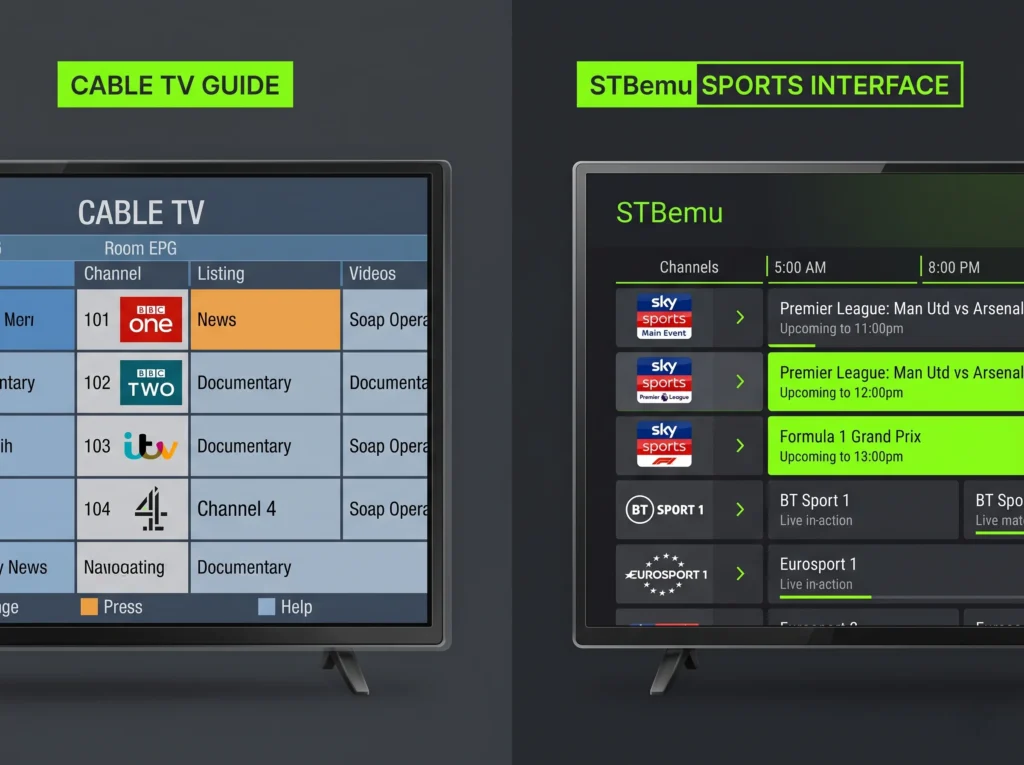
STBemu works by connecting to a Stalker middleware portal — your IPTV provider gives you a portal URL, and the app uses that to load all your channels, EPG (TV guide), and video-on-demand content. It looks and feels exactly like a real set-top box, with a proper channel grid and organized bouquets.
STBemu Free vs STBemu Pro — What’s the Difference?
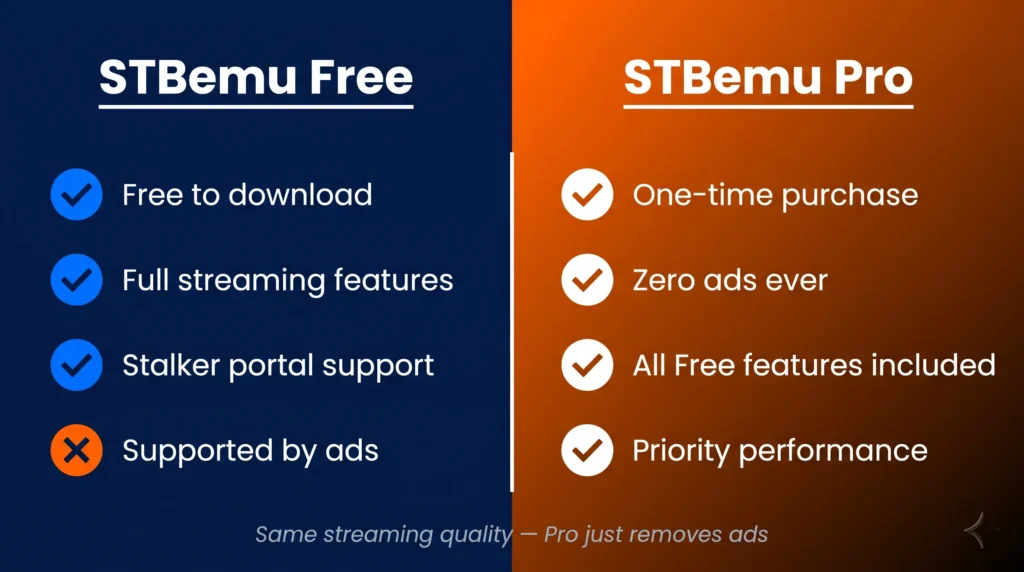
- STBemu Free — works perfectly, completely free, but shows ads
- STBemu Pro — one-time purchase, removes all ads, adds extra features
Both versions work identically for streaming. STBemu Pro is worth it if you want a clean, ad-free experience.
What You Need Before You Start
Before installing STBemu on your Firestick, make sure you have:
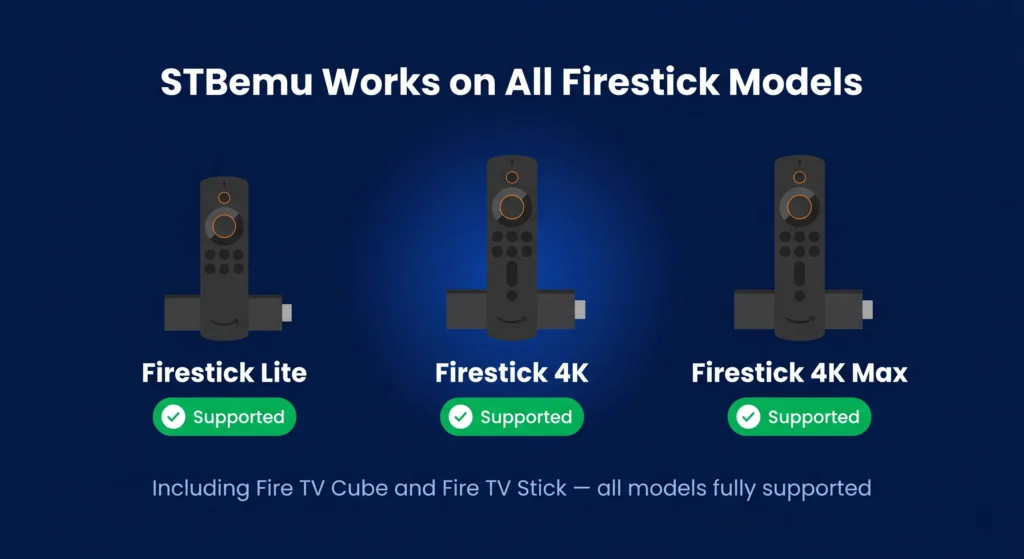
- An Amazon Firestick (any model — Firestick Lite, Firestick 4K, Firestick 4K Max all work)
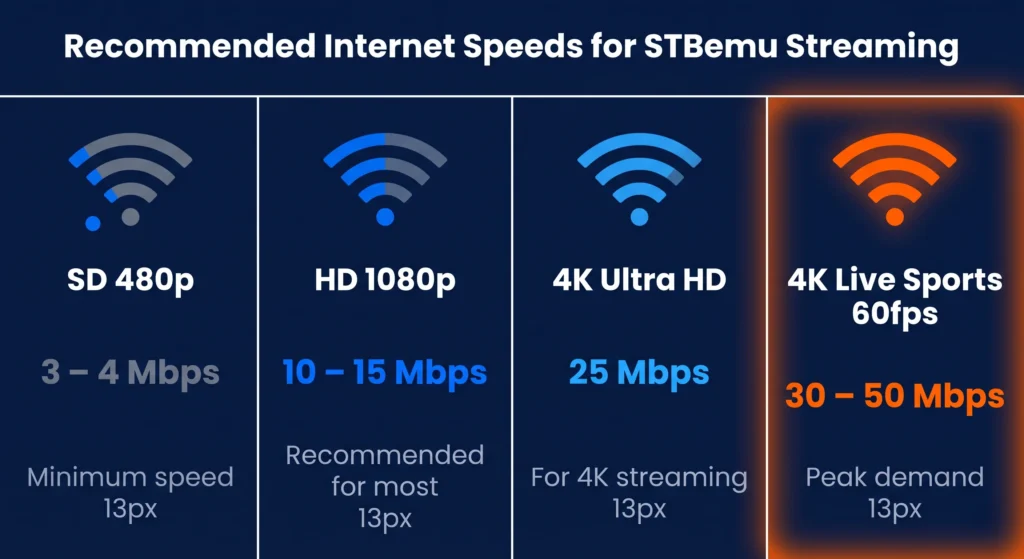
- A working internet connection (at least 10 Mbps for HD, 25 Mbps for 4K)
- An active IPTV subscription with a portal URL, MAC address activation
That’s it. Let’s get started.
Step 1 — Enable Apps from Unknown Sources on Firestick
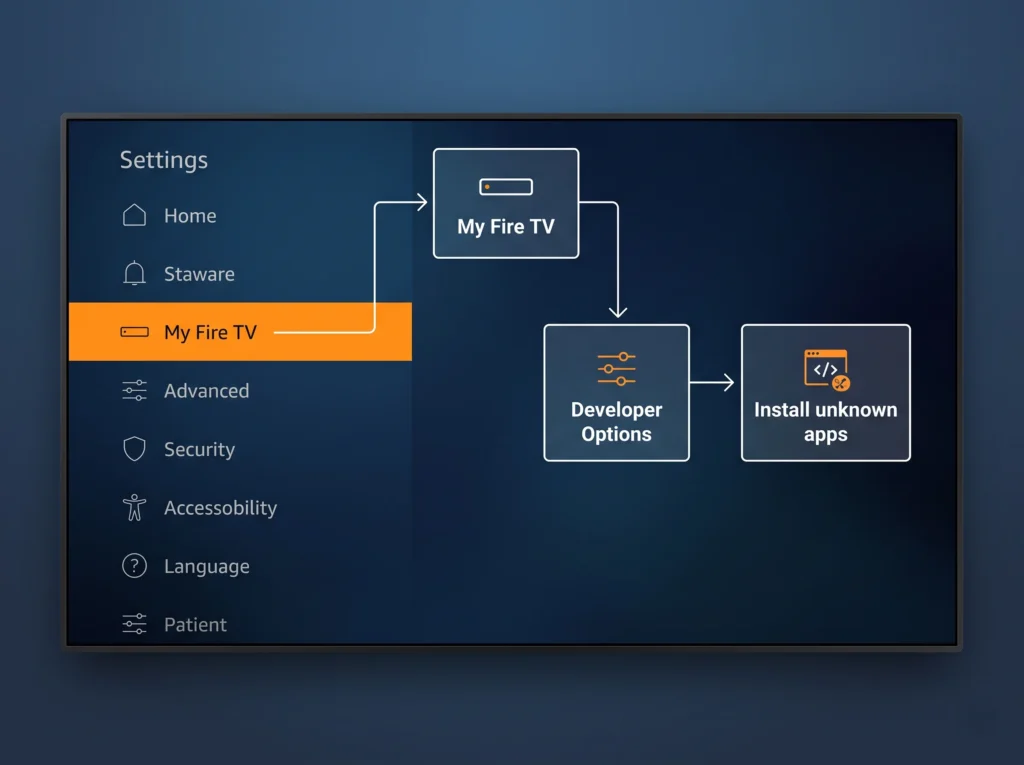
Amazon’s Fire OS only allows apps from its own store by default. Since STBemu is not on the Amazon App Store, you need to allow third-party apps first.
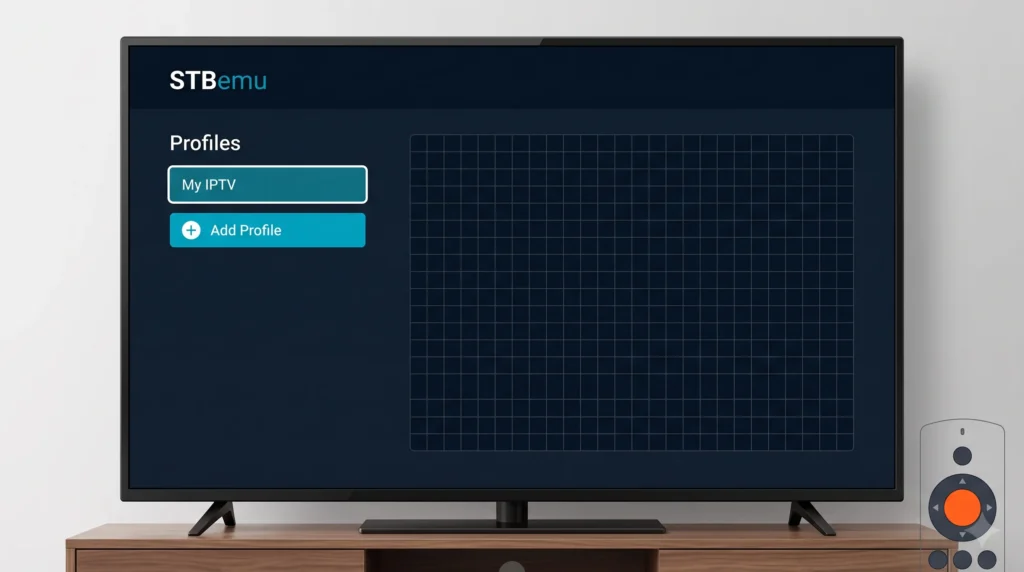
- From the Firestick home screen, go to Settings
- Select My Fire TV
- Click Developer Options
- Turn on Install Unknown Apps
- Also turn on ADB Debugging (optional but recommended)
If you don’t see Developer Options, go to Settings → My Fire TV → About and click your Fire TV name 7 times in a row. This unlocks the Developer Options menu.
Step 2 — Install the Downloader App
The Downloader app is what you’ll use to download the STBemu APK file onto your Firestick. It’s available free on the Amazon App Store.
- From the Firestick home screen, use the search icon at the top
- Search for “Downloader”
- Select the Downloader app by AFTVnews (orange icon)
- Click Download and then Open
- When it opens, allow any permissions it asks for
Step 3 — Download STBemu APK on Firestick
Now use the Downloader app to get the STBemu APK file.
For STBemu Free
- Open the Downloader app
- In the URL box, type the STBemu APK download URL
- Click Go
- Wait for the download to finish
For STBemu Pro on Firestick
The Pro version requires a purchase from the Google Play Store. If you want STBemu Pro on Firestick, the easiest route is to download the free version first, then upgrade later through an Android device or use a sideloaded Pro APK from a trusted source.
Tip: If you have an IPTV provider that activates by MAC address (like STBemu Pro does), the free version works identically for streaming purposes.
Once the download completes, the Downloader app will automatically ask if you want to install it.
Step 4 — Install STBemu on Firestick
After the download finishes:
- A prompt will appear asking “Do you want to install this app?”
- Click Install
- Wait for the installation to complete — this takes about 30 seconds
- Click Done (not Open — we’ll open it properly in the next step)
- The Downloader app will ask if you want to delete the APK file — click Delete to free up storage space
STBemu is now installed on your Firestick.
Step 5 — Find STBemu on Your Firestick
After installation, STBemu won’t appear on your home screen automatically. Here’s how to find it:
- From the home screen, scroll right to Your Apps & Channels or click Apps
- Scroll to the right — STBemu will be at the end of your app list
- To move it to the front: highlight it, hold the menu button (three lines), and select Move to Front
How to Make STBemu Searchable on Firestick
You can also ask Alexa — just say “Alexa, open STBemu” and it will launch directly.
Step 6 — Set Up STBemu on Firestick (First-Time Configuration)
This is where most people get stuck. Follow these steps carefully.
6.1 — Create a New Profile
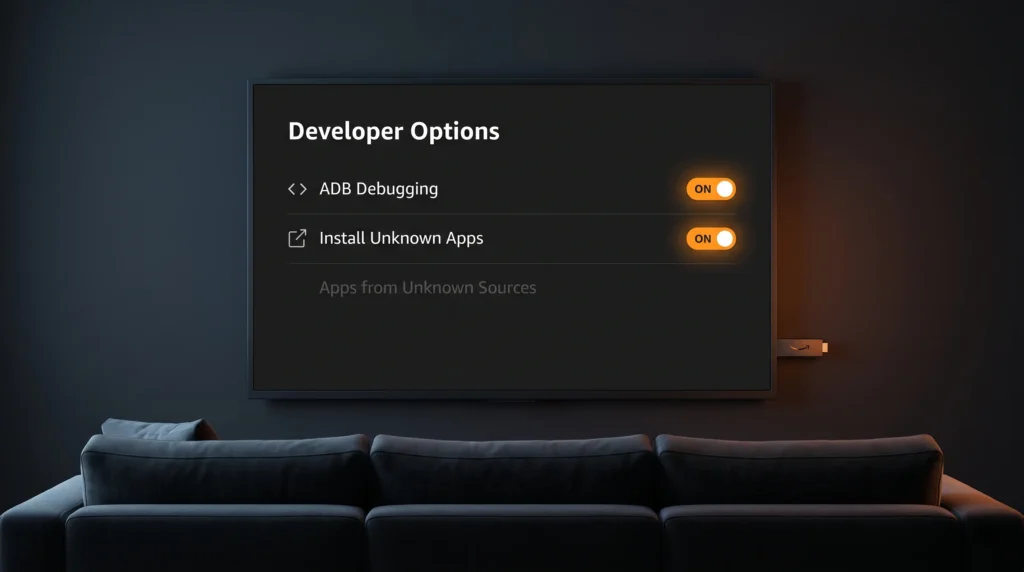
When STBemu opens for the first time, you’ll see an empty screen. You need to create a profile to connect to your IPTV service.
- Press the Menu button on your Firestick remote (three horizontal lines)
- Select Profiles
- Click Add Profile
- Give your profile a name (e.g., “My IPTV”)
- Click OK
6.2 — Find Your STBemu MAC Address
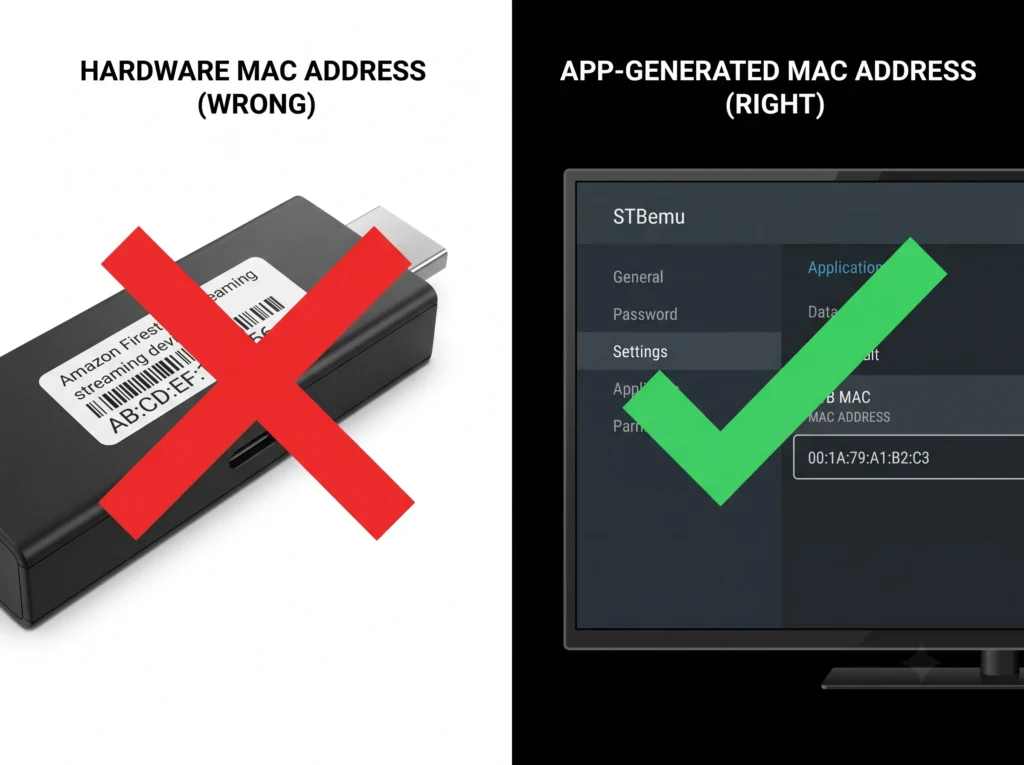
This is the most important step. Your IPTV provider needs your STBemu virtual MAC address — not your Firestick’s hardware MAC address. These are different.
How to Find Your MAC Address in STBemu
- Open STBemu
- Press the Menu button
- Go to Settings
- Select Servers
- Click on your profile
- Scroll down — you’ll see MAC Address starting with 00:1A:79
Copy this MAC address exactly and send it to your IPTV provider. This is what they use to activate your subscription.
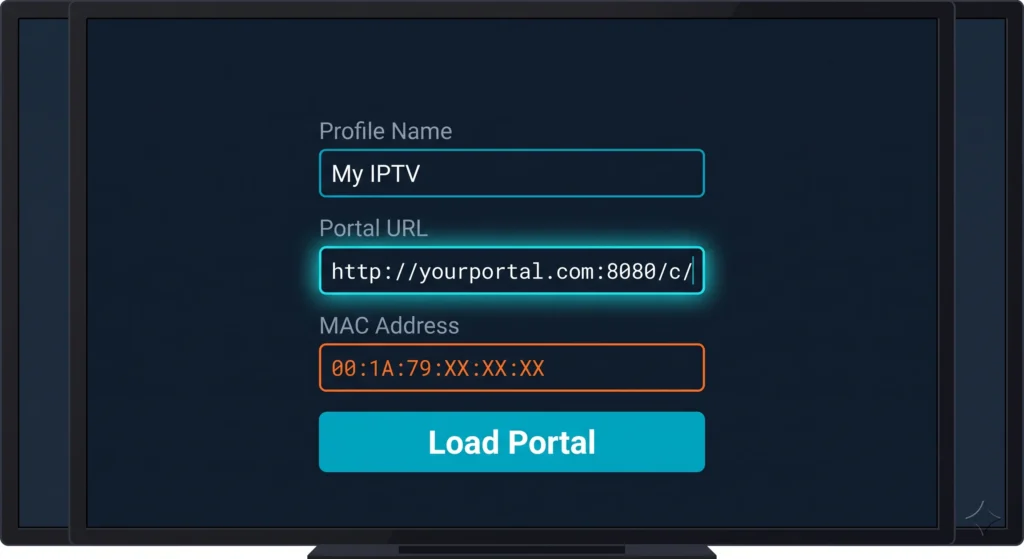
6.3 — Enter Your Portal URL
Once your provider activates your MAC address, they’ll give you a portal URL.
- In STBemu, press Menu → Settings → Servers
- Select your profile
- Find the Portal URL field
- Enter your portal URL exactly as given — for example:
http://yourprovider.com:port/c/
Common Mistakes to Avoid
- Don’t add
https://if your provider gives youhttp:// - Don’t add a trailing slash if it’s not in the URL
- Make sure there are no spaces before or after the URL
- Use the Firestick keyboard carefully — it’s easy to mistype
Once entered, click OK and then Load Portal. Your channels should appear within a few seconds.
How to Configure STBemu on Firestick
Once your portal loads, here are the key settings to configure for the best experience.
Video Player Settings
If you experience freezing or audio sync issues:
- Go to Settings → Player Settings
- Change the player from Internal to ijkplayer or try External Player (VLC)
- Hardware acceleration should be ON for smooth 4K playback
EPG (TV Guide) Settings
To get the TV guide working:
- Go to Settings → EPG
- Make sure your portal is providing EPG data — most providers include this automatically
- If the guide shows “No Data”, ask your IPTV provider for the EPG URL
Does STBemu Work on Firestick 4K?
Yes — STBemu works perfectly on all Firestick 4K models including:
- Firestick 4K (1st and 2nd generation)
- Firestick 4K Max
- Fire TV Cube
The installation process for STBemu on Firestick 4K is identical to the standard Firestick. The 4K model’s more powerful processor actually handles STBemu better, giving you smoother channel switching and faster portal loading.
4K Streaming Requirements
For 4K streaming make sure:
- Your IPTV provider offers 4K streams (ask them before subscribing)
- Your internet connection is at least 25 Mbps
- Hardware acceleration is enabled in STBemu settings
Troubleshooting — STBemu Pro Not Working or Not Loading on Firestick
STBemu Not Loading / Black Screen
Cause: Wrong portal URL or MAC address not activated by provider
Fix:
- Double-check your portal URL — even one wrong character breaks it
- Confirm your provider has activated your MAC address
- Make sure your Firestick is connected to the internet
- Try clearing the app cache: Settings → Applications → Manage Installed Applications → STBemu → Clear Cache
STBemu Crashing on Firestick
Cause: Usually a memory issue on older Firestick models
Fix:
- Force stop other running apps to free up memory
- Clear STBemu cache (see above)
- Go to Player Settings and switch to a lighter player engine
- If using Firestick Lite, lower the stream quality in settings
STBemu Pro Not Loading on Firestick
Cause: Same as above — portal or activation issue, or corrupted install
Fix:
- Uninstall STBemu completely
- Restart your Firestick
- Reinstall using the Downloader app
- Set up your profile fresh
Channels Buffering or Freezing
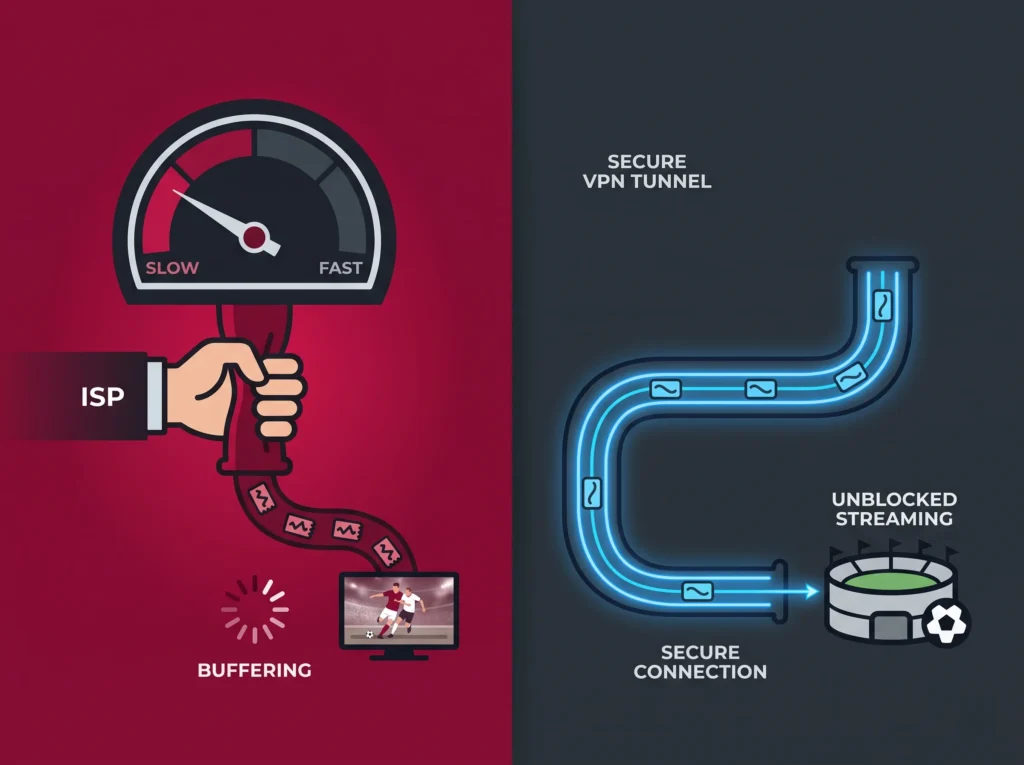
Cause: Either internet speed, server load, or ISP throttling
Fix:
- Run a speed test on your Firestick (search “internet speed test” in the browser)
- If speed is fine, try a different server or playlist from your provider
- Switch your DNS to 8.8.8.8 (Google) or 1.1.1.1 (Cloudflare) in your router settings
- Contact your IPTV provider — they may have a backup server
STBemu on Firestick 4K Black Screen
Cause: Video codec mismatch between the stream and the player
Fix:
- Go to Settings → Player Settings
- Disable Hardware Acceleration
- Try switching to ijkplayer as the default player
- If the issue persists, switch to VLC as external player
Can I Record on STBemu on Firestick?
STBemu does not have a built-in DVR or recording function. The app is designed purely for live streaming and VOD playback — it does not support recording or time-shifting natively.
If you want to record content, you would need a separate screen recording app on your Firestick, though this is a complex workaround with quality limitations.
Is STBemu Good on Firestick? (Reddit & User Verdict)
STBemu is consistently rated as one of the best Stalker protocol apps for Firestick by the IPTV community. Its advantages over alternatives:
- Purpose-built for Stalker/Ministra middleware (not a generic M3U player)
- Proper channel grid and EPG like a real set-top box
- Handles MAC address authentication natively
- Lightweight and fast even on older Firestick models
- Regular updates from the developer
The only common complaints are the ads in the free version (solved with Pro) and occasional crashes on very old Firestick models with limited RAM.
Frequently Asked Questions
Does STBemu Work on Firestick 4K?
Yes, STBemu works on all Firestick 4K models. The installation process is identical to the standard Firestick.
How Do I Download STBemu on Firestick for Free?
Use the Downloader app to sideload the STBemu APK — the full process is covered step by step above.
How Do I Get STBemu Pro on Firestick?
STBemu Pro is the paid, ad-free version. It can be sideloaded via the Downloader app using the Pro APK file.
Why Is STBemu Not Loading on My Firestick?
The most common causes are an incorrect portal URL, MAC address not activated by your provider, or a corrupted install. See the troubleshooting section above.
How Do I Configure STBemu on Firestick After Installing?
Create a profile, find your virtual MAC address (starting with 00:1A:79), share it with your IPTV provider for activation, then enter your portal URL. Full steps are in Section 6 above.
Can I Install STBemu on Firestick Using Downloader?
Yes — the Downloader app is the recommended method for sideloading STBemu onto any Firestick model.
Is STBemu Free on Firestick?
Yes, STBemu Free is completely free to download and use. STBemu Pro is a paid upgrade that removes ads.
Final Thoughts
Installing STBemu on Firestick is straightforward once you know the steps. The key things to remember are: enable unknown sources first, use the Downloader app to get the APK, create a profile, find your virtual MAC address (starting with 00:1A:79), and enter your portal URL exactly as provided.
If you need an IPTV subscription to use with STBemu, STBemu Pro offers 19,000+ live channels in HD and 4K, with a free 48-hour trial — no credit card required. Activation is done via WhatsApp within minutes of submitting your MAC address.