
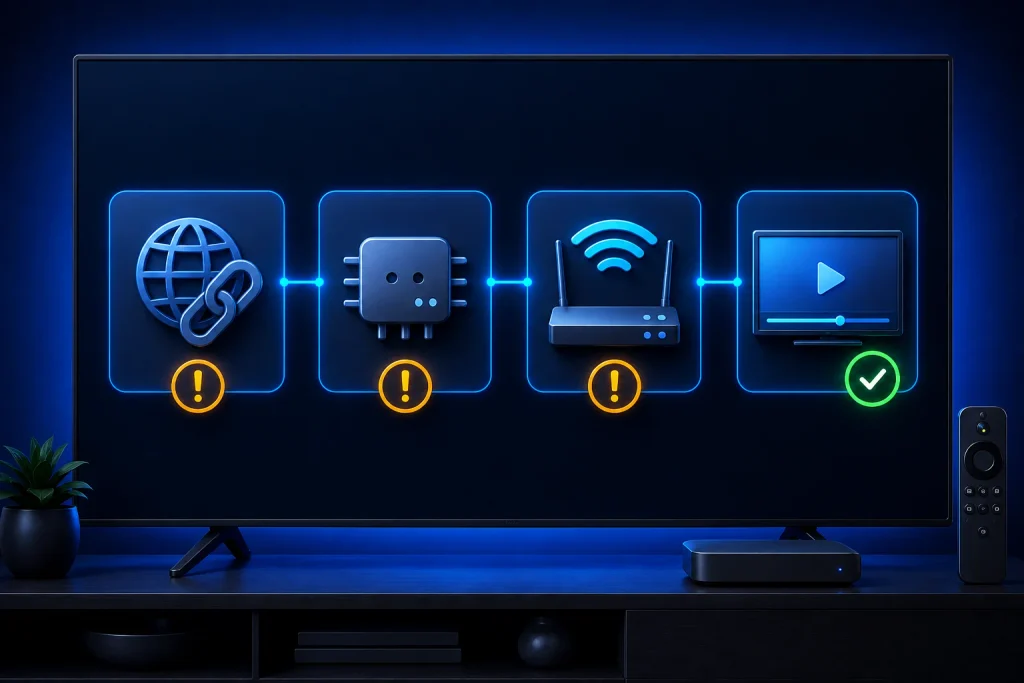
If your STBemu portal is not loading, first check the full portal URL and your device’s internet connection. Then confirm that the active StbEmu profile uses the MAC address authorized by your provider. A loading screen that never finishes can come from an unreachable server, a network problem, a wrongly entered URL, or a provider-side account restriction. Changing your media player usually will not fix a portal that has not opened.
The steps below apply to StbEmu Free and Pro on compatible Android-based devices. Menu wording can differ slightly by app version and device. The StbEmu developer’s profile documentation identifies the relevant controls under Settings → Profiles → Portal settings and STB configuration.
Check the symptom before changing settings
| What you see | What it suggests | First check |
|---|---|---|
| “Loading portal” never completes | Portal cannot finish opening; possible URL, network, server or cache issue | Full URL and device connection |
| Connection or page-loading error | Server address cannot be reached, or the connection fails | Scheme, domain, port, network |
| “Authentication failed,” “STB blocked,” or access denied | Portal may be reachable but refuses the account/device identity | Registered MAC and subscription status |
| Portal menu loads, but a channel is black | Portal login succeeded; likely a playback or stream issue | Test another channel and player settings |
This distinction matters: a stalker portal connection error is not necessarily a video playback error. Start where the failure occurs instead of resetting every setting.
1. Check the entire portal URL
In StbEmu, open the app menu, then go to Settings → Profiles, select your active profile, and open Portal settings → Portal URL. Compare the address with the one your provider supplied, character by character.
- Keep the protocol (
http://orhttps://). The official documentation says a portal URL must begin with a scheme. - Check the domain, any port number, and the complete path. If your provider includes
/c/or another ending, retain it exactly. - Remove spaces introduced by copying and pasting. Don’t invent a path or replace
httpwithhttpsunless the provider confirms the change. - If you recently changed services, make sure the correct profile is active rather than an older saved profile.
For example, https://portal.example.com/c/ illustrates the format only. It is not a working service address. A provider may use a different path or port. For a complete introduction to these fields, see our Stalker portal setup guide.
2. Test the internet connection on the same device
Open another internet-based application on the Android TV box, Fire TV model, or phone running StbEmu. If nothing loads, reconnect Wi-Fi or restart the router and device. Where available, test Ethernet to rule out poor Wi-Fi reception.
If other apps work but StbEmu remains stuck loading the portal, compare the connection using a trusted alternate network, such as your own phone hotspot. A portal that works on the hotspot but not home internet suggests a home-network routing, DNS, filter, or provider-side IP restriction issue. It doesn’t automatically mean your internet speed is too slow.
Check that your device’s date and time are correct, especially for HTTPS portal addresses. An incorrect clock can interfere with secure connections. If you use a VPN, custom DNS service, proxy or network filter, temporarily disable it for a comparison test, then restore your usual settings afterward.
3. Confirm your MAC address is authorized
A portal can respond without letting your StbEmu profile sign in. In the active profile, open STB configuration → MAC address and compare the emulated MAC with the value your IPTV provider registered.
The StbEmu documentation notes that many portals expect an emulated address beginning with 00:1A:79. That prefix alone does not activate a subscription. Your provider must recognize the complete device identity and account.
If you reinstalled the app, cleared its stored data, or moved the subscription to another device, ask your provider whether your authorized identity changed. Avoid repeatedly creating new MAC addresses to bypass blocks: it can make troubleshooting harder and may violate your service terms.
For an authorization error, send your provider the exact error text, your account reference, the MAC shown in the active profile, and the time of the failure. Share account details privately, not in public comments.
4. Review network cache only if the earlier checks pass
StbEmu includes Settings → Common settings → Network settings → Enable network cache. According to the developer’s common-settings documentation, network caching usually makes portal loading faster, but disabling it can help when authentication errors recur or when the device has a network-specific issue.
If the URL, internet connection and provider registration all check out, temporarily turn off Enable network cache, fully close StbEmu, and reopen the active portal. If the change makes no difference, switch the cache back on. Treat this as a diagnostic, not a universal speed fix.
Do not confuse turning off network cache with Android’s Clear storage/Clear data option. Clearing app data may remove your saved profiles, portal address and device-identity settings.
5. Check the selected STB model and portal type
Under Settings → Profiles → STB configuration, StbEmu lets you emulate an STB model and firmware. Some provider portals require a supported combination. Use the model specified by your provider and keep the normal Generic firmware unless there is a confirmed reason to change it. The developer’s profile reference documents these options.
Also check Portal settings → Portal is internal. That setting is for internal MAG-device portals; it should not be enabled for a conventional remote portal unless your provider specifically tells you otherwise.
StbEmu is a Stalker/MAG portal emulator. It does not load an M3U playlist as though it were a portal URL. The official FAQ confirms that playlists are not supported. If you have only an M3U link or Xtream Codes server, username and password, obtain a compatible player or ask your provider for a genuine Stalker portal connection.
6. Reload the active portal, then restart the app
After correcting a setting, save it and use the available portal reload/restart option. If the screen remains frozen, completely close the app using your device’s app settings, then open it again. Restart the Android device if necessary.
Do not factory-reset your television or erase all StbEmu data as a first response. Neither action can repair a server outage, expired account or incorrect URL. Record your authorized portal and profile details before attempting any destructive reset.
7. Ask your provider to check the portal server
If the URL is correct, your connection works, the MAC is registered, and your profile still cannot open, the remaining cause may be outside your device. Ask the provider to confirm whether the server is reachable, your subscription is active, the MAC/Device ID is authorized, and any device or IP restrictions are in place.
Send a concise support request with the portal domain (avoid posting access tokens), your device and StbEmu version, whether it fails on one or more networks, the exact message on screen, and the approximate time. This gives the provider evidence to investigate instead of asking you to reinstall the application repeatedly.
What if the portal opens but channels do not play?
That is a different problem. If the channel list and portal menus are visible, test several channels before changing app settings. One failing stream may be unavailable upstream; a black screen on all streams can indicate a video-decoding, playback-engine, service, or network issue. StbEmu offers several media player options in Profile → Media player settings, but switching player engines should come after confirming that the portal itself loads. The official profile reference lists the player choices.
FAQ
Why is STBemu stuck on “Loading portal”?
Most often, the portal has not completed a connection because the URL is incorrect, the network cannot reach the host, the server is unavailable, or the account is not authorized. Compare the exact URL and connection first; then check MAC registration and cache behavior.
What should I do if the portal worked yesterday but not today?
Confirm that your provider hasn’t changed the portal address or the status of your subscription. Test the same device on another network and ask whether the account or emulated MAC is still active. A change in device profile after reinstalling can also cause authorization failures.
Does clearing STBemu cache delete my portal settings?
The app’s network-cache toggle is different from clearing Android app storage. Clearing stored app data can remove profiles. Back up or record your authorized configuration before using a reset option.
Can I use an Xtream username and password to fix a Stalker portal error?
No. Xtream credentials are a different login format. StbEmu is intended for compatible Stalker/MAG portals. A username/password-only subscription requires a player that supports that login type, unless the provider also supplies a Stalker portal.
Conclusion
When an STBemu portal is not working, check the complete URL and the internet connection on the affected device before changing anything else. If those are correct, confirm that the active StbEmu profile has the MAC registered to your account. Network cache and STB model settings are secondary checks; a confirmed server or account failure needs the provider’s help.
If you are setting up the app for the first time, follow the STBemu Stalker portal setup instructions. If you need to evaluate a compatible subscription rather than repair an existing account, you can review the 48-hour trial before choosing a plan.